Update the app
Who: anyone. When: the app says an update is available, or it's stuck on the loading screen.
AutoLNK POS checks for updates automatically and downloads them in the background.
Quick version
Setup › Updates › Check for updates › Download update (or Update now) › Restart now.
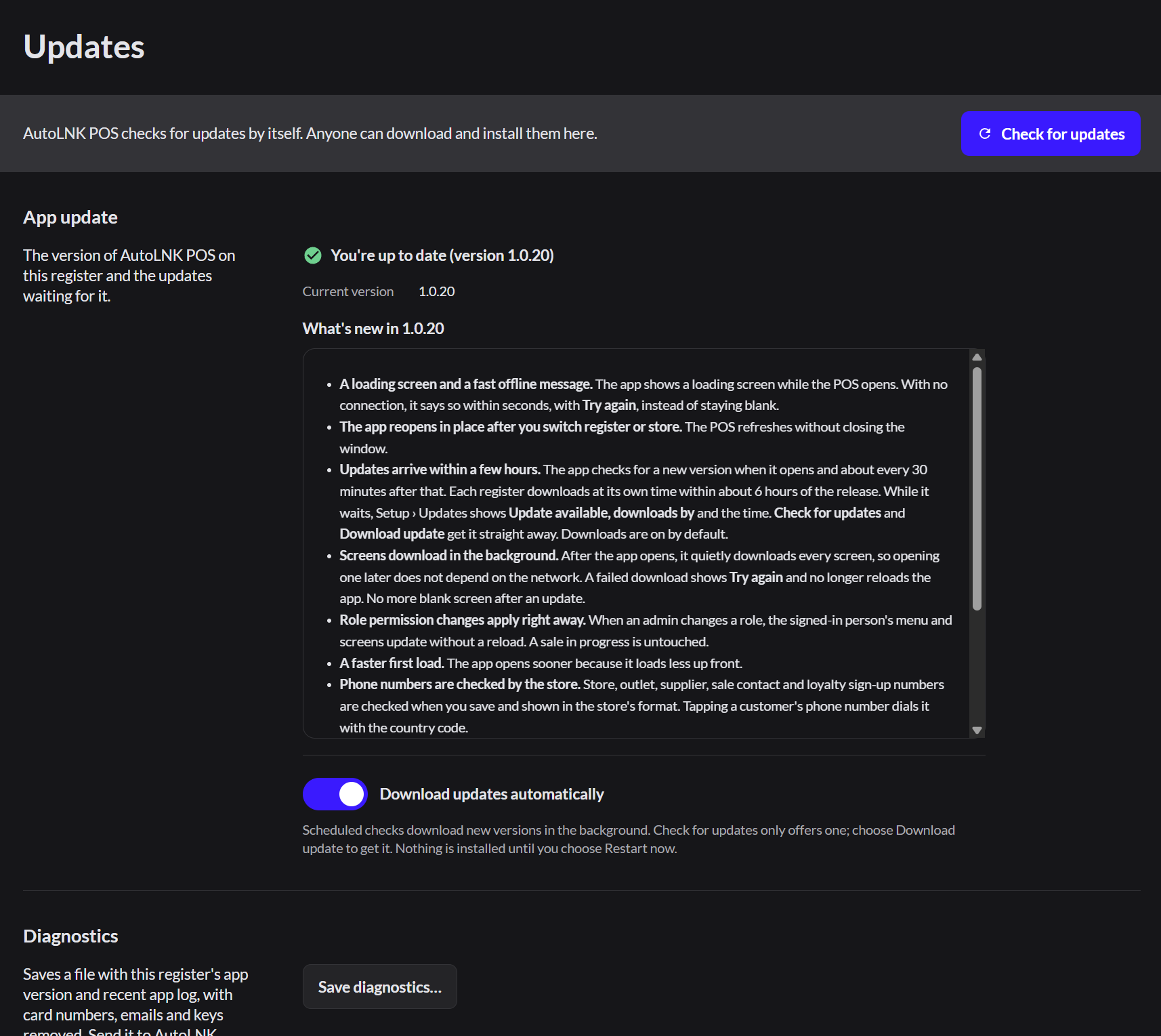
Install an update
- Finish or park the sale on screen.
- Go to Setup › Updates.
- Click Check for updates.
- If a version is waiting, click Download update, or Update now if it's already downloaded.
- Click Restart now. The app closes and reopens on the new version. Selling pauses for about a minute.
You can also use the AutoLNK POS menu at the top left and click Check for Updates….
Keep updates automatic
Leave Download updates automatically on. The app doesn't install an update until someone clicks Restart now, so an update never interrupts a sale.
If the app won't open
If the app is too far out of date, it can stay on Loading your register…. Close it, install the latest version, and open it again.
Diagnostics
If AutoLNK support asks for it, click Save diagnostics…. This saves a file with the app version and recent log. Card numbers, emails and keys are removed from the file.