Connection codes
Who: an Admin. When: a new computer needs to become a register, or a register's computer is being replaced.
A connection code links one computer to one register. Each code is shown once, works once, and expires.
Quick version
POS › Register connections › Connect device or Replace device › Generate code › give the code to the person at the new computer.
1. Open Register connections
Go to POS › Register connections. Each register shows the computer connected to it.
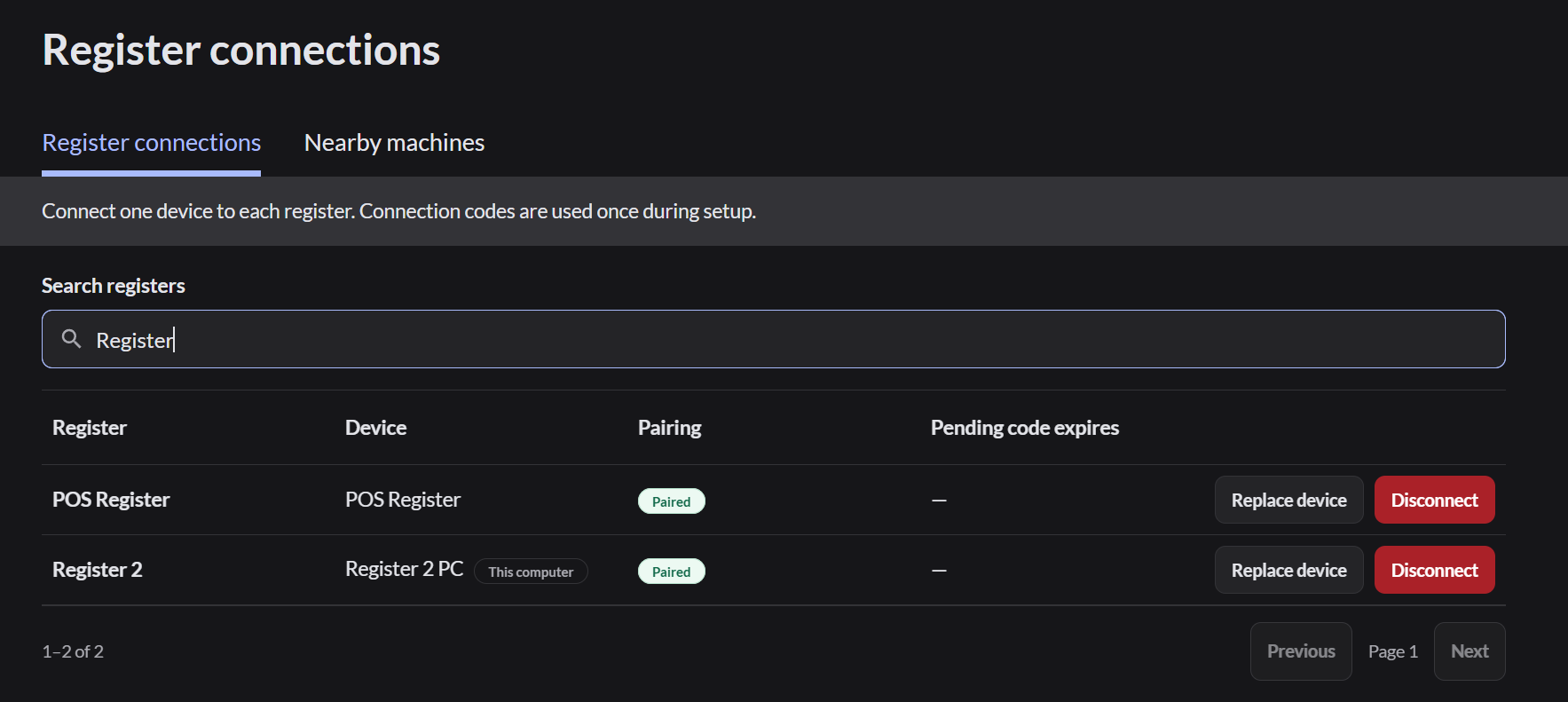
2. Start a code for the register
Click Connect device on a register with no computer, or Replace device on one that already has a computer. Choose how long the code lasts, then click Generate code.
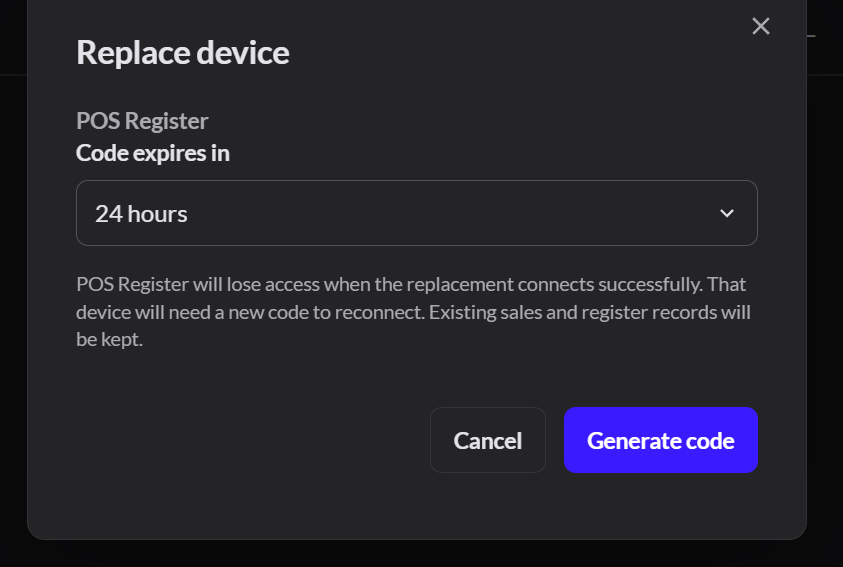
3. Copy the code
Write the 12-digit code down or click the copy icon. It's shown only once. Then click Done.
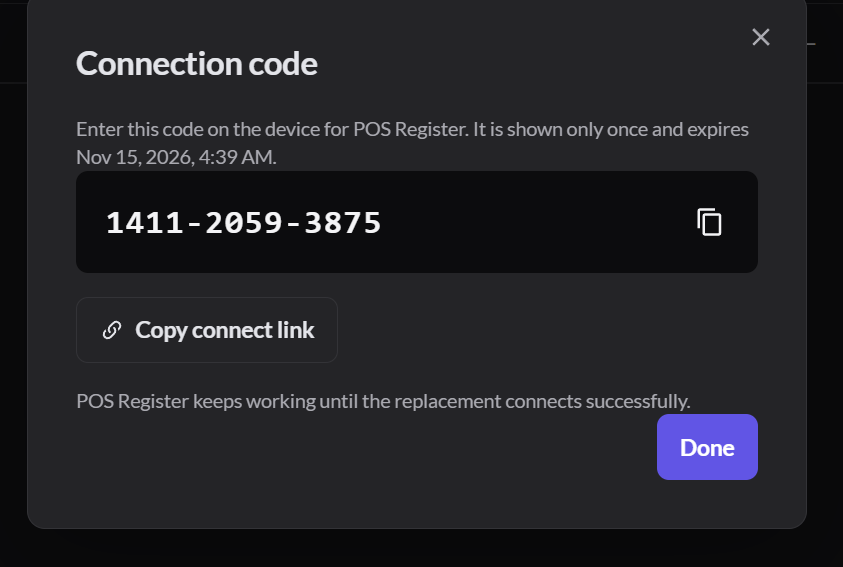
4. Use the code
Give the code to the person at the new computer. They use it to connect the new computer.Connect a new computer
What the list tells you
| Pairing | Meaning |
|---|---|
| Paired | A computer is connected to this register |
| Waiting to pair | A code was made and hasn't been used yet |
| Not paired | No computer is connected |
Replacing a computer: the old computer keeps working until the new one connects. After that, it loses access and needs a new code to reconnect. Sales and register records are kept.
If it doesn't work
- "That connection code isn't valid": check the digits, or make a new code.
- The code expired: click Generate another code. This cancels the old one.
- You made a code by mistake: click Cancel code. Connected computers aren't affected.
- The wrong computer connected: click Disconnect on that register and start again.