Apply a restaurant discount
Who: cashier or manager. Cashiers can do this unless an Admin has turned it off. A manager sets up the discounts first. When: a manager has approved money off an order.
In Restaurant mode, you pick a discount from a list. For discounts in Retail mode: How to apply a discount
Quick version
Open the order › Actions › under Available discounts, tap the discount.
Apply a discount
- Add the items to the order.
- Click Actions at the top of the order.
- Under Available discounts, tap the discount. The screen says "Discount added to order".
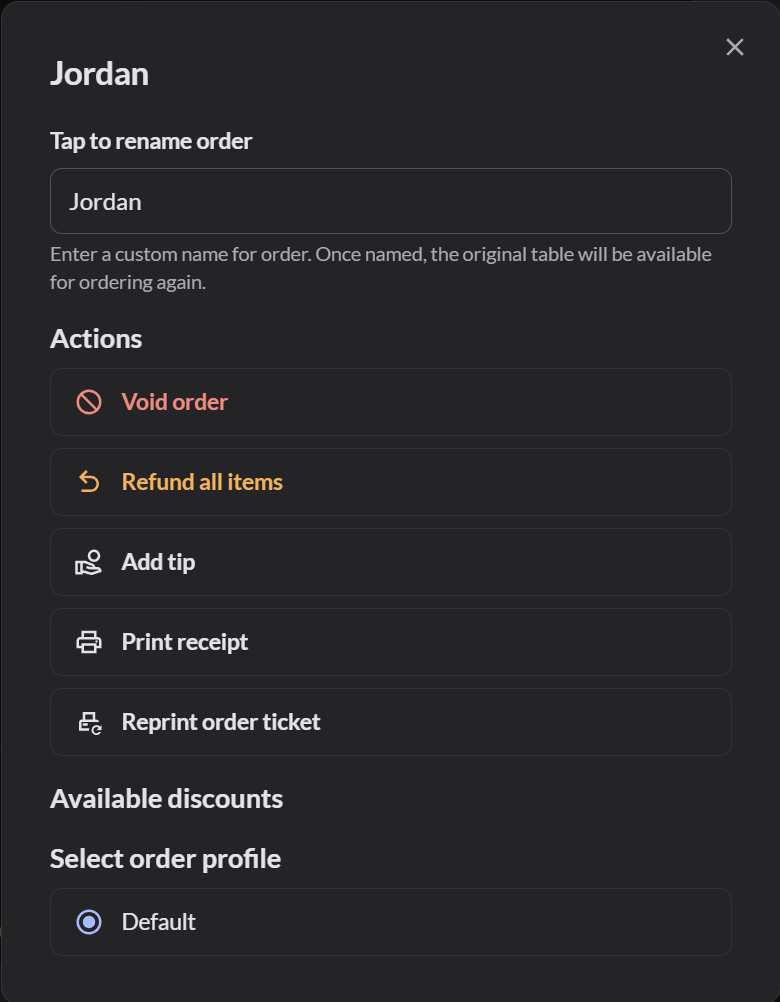
If the discount lets you choose the amount, a box opens. Type the amount and click Apply discount.
To remove a discount, open Actions and tap the discount again.
Discount one item
- Click … next to the item.
- Under Apply discount, tap the discount.
To remove it, tap the discount again.
Set up a discount
Who: manager or Admin. Cashiers can also do this unless an Admin has turned it off.
- Switch to Restaurant, then go to Setup › Discounts and click Add discount.
- Type a Discount name, such as Staff 15%.
- Choose Percentage or Amount, and type the value.
- To let staff type a different value when they apply it, turn on Custom discount.
- Under Product categories, choose which items it applies to. All covers every item.
- Click Save.
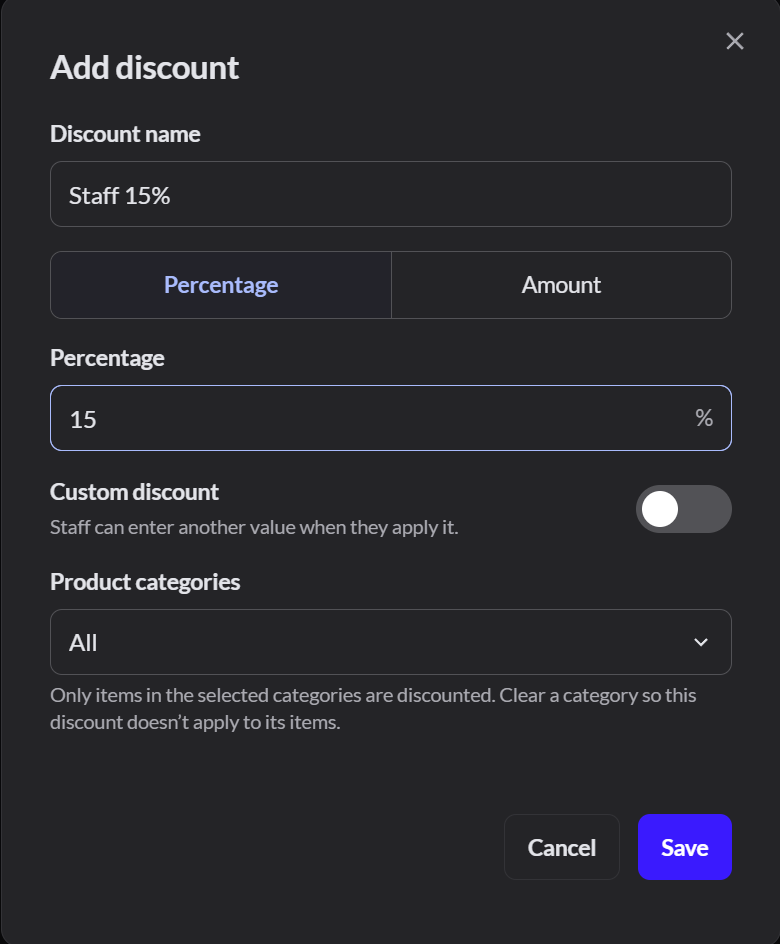
A discount can't be deleted once it's made. To stop offering it, an Admin unselects it in each POS configuration in Setup › POS configurations.
If it doesn't work
- Available discounts is empty: no discounts are set up yet. Ask a manager.
- There's no Available discounts section: your role doesn't allow discounts, or the order has no items yet.
- "Your role allows a maximum order/item discount": the discount is bigger than your role allows. Ask a manager to apply it.