Order profiles and service charges
Who: manager or Admin. Cashiers can also add profiles unless an Admin has turned it off. Only an Admin can select a profile in POS configurations. When: some orders need different settings, such as pickup orders, a service charge for large parties, or different prices.
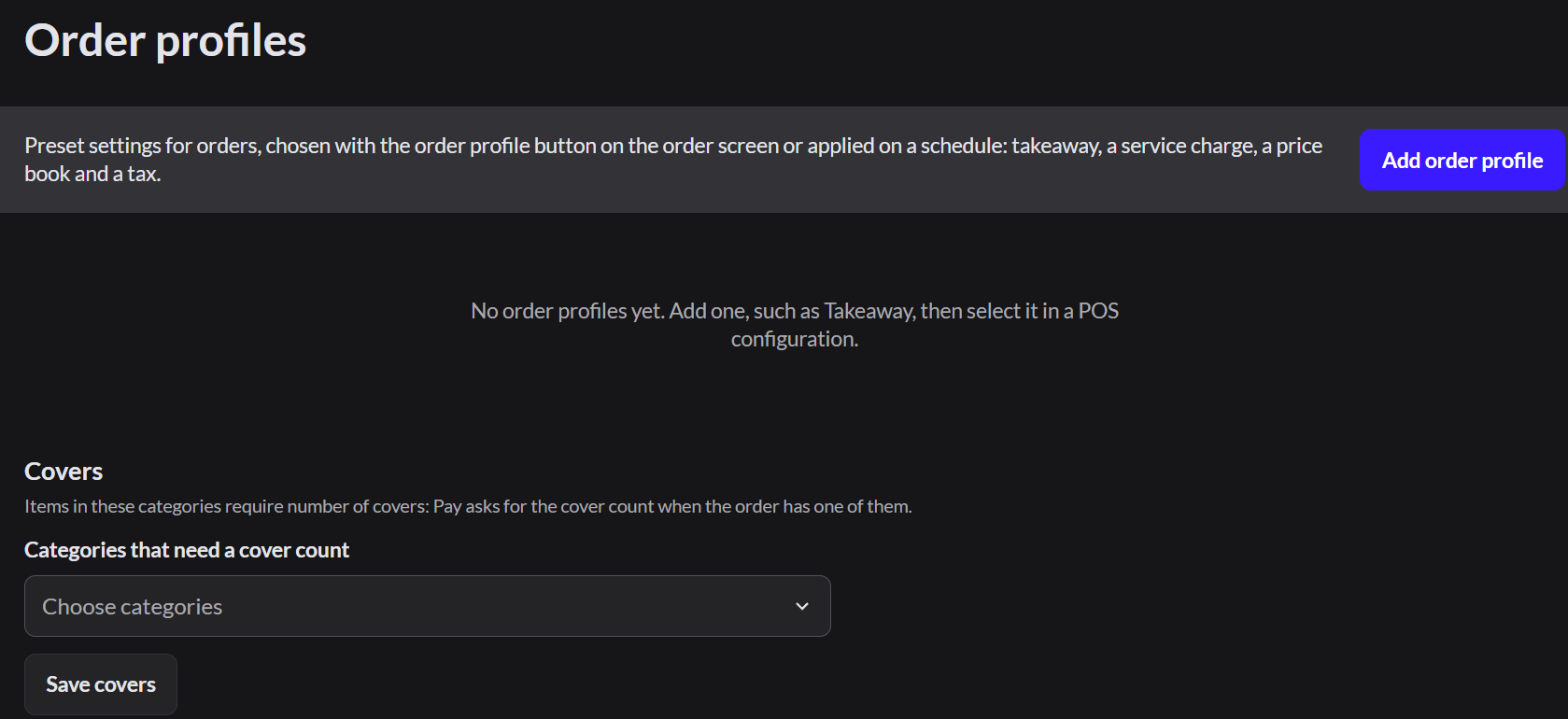
An order profile is a set of preset settings for an order: takeaway, a service charge, a price book and a tax. Staff pick a profile on the order screen, or it's applied on a schedule.
Quick version
Setup › Order profiles › Add order profile › name, code and settings › Save. Then an Admin selects it in the POS configuration.
Add an order profile
- Go to Setup › Order profiles and click Add order profile.
- Type a Name (what staff see) and a Code (a short code no other profile uses).
- Set the options you need, then click Save.
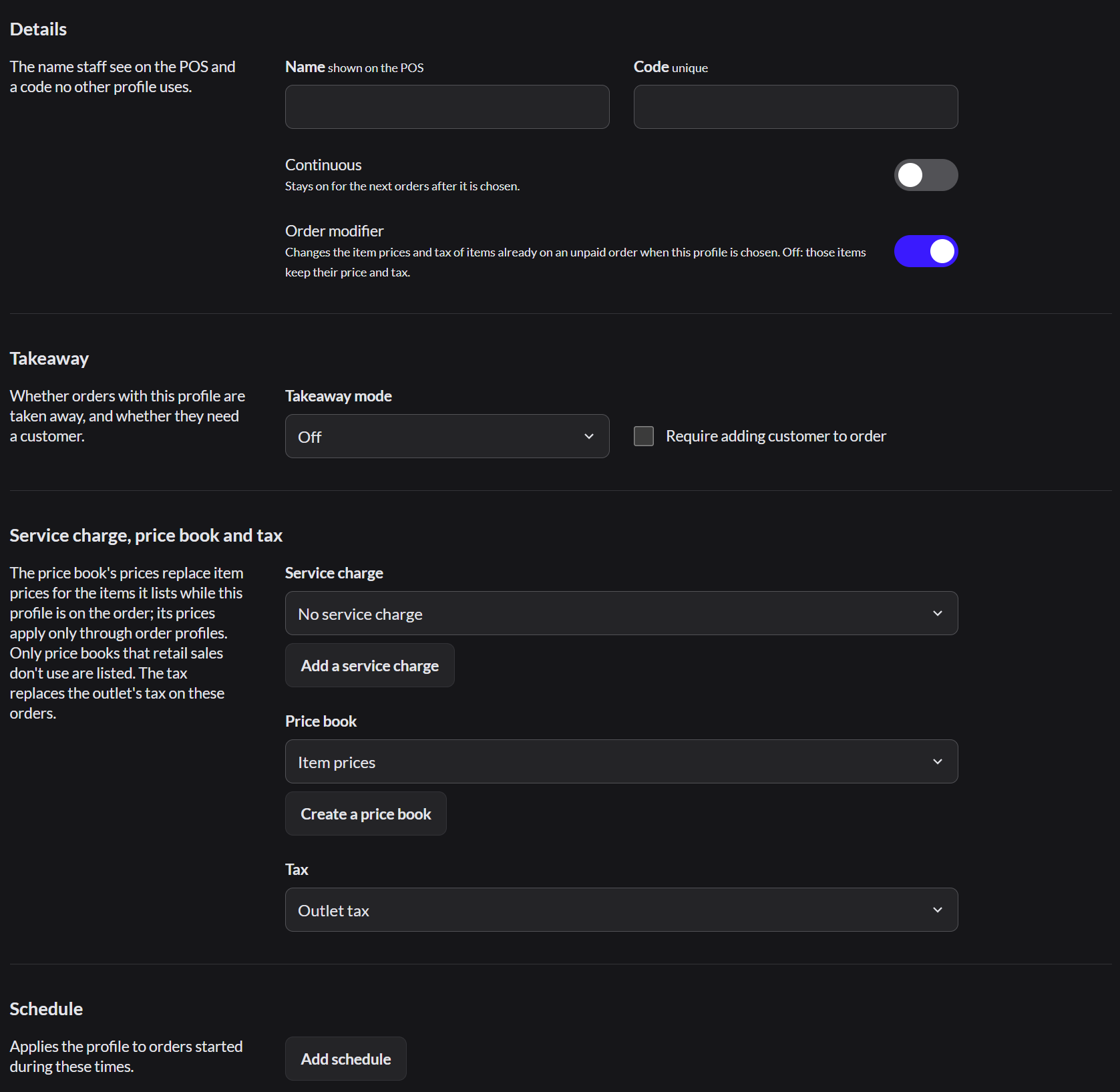
| Setting | What it does |
|---|---|
| Continuous | Keeps the profile on for the next orders after it's chosen |
| Order modifier | Changes the prices and tax of items already on the order when the profile is chosen |
| Takeaway mode | Pick up or Delivery makes these takeaway orders. How to take a pickup or delivery order |
| Require adding customer to order | Staff must add a customer to the order |
| Service charge | A charge added to every order with this profile |
| Price book | Prices that replace the item prices while the profile is on the order |
| Tax | A tax that replaces the outlet's tax |
| Add schedule | Applies the profile on certain days and times |
Make the profile available
Only an Admin can do this.
- Go to Setup › POS configurations and open the configuration.
- In Select order profiles for automated settings and accurate pricing, select the profile.
- Click Save.
On the order screen, staff tap the profile button at the top of the order (it says Default tag when no profile is set) and choose the profile. More about POS configurations
Stop using a profile
Open the profile and click Delete order profile. Once orders have been taken with a profile, it can't be deleted, because reports still use it. Instead, take it off every POS configuration so staff can't choose it.
Set which items need a cover count
At the bottom of Setup › Order profiles, under Covers, choose the Categories that need a cover count and click Save covers. When an order has an item from one of these categories, the pay screen asks how many covers (guests) there are.
Add a service charge
Who: manager or Admin.
A service charge is a percentage added to an order as its own line.
- Go to Catalog › Service charges and click Add service charge.
- Type a Name and the Price as a percentage of the order.
- Choose the Product category it's reported under.
- Choose whether the charge can be discounted and whether it's Taxed.
- Click Save.
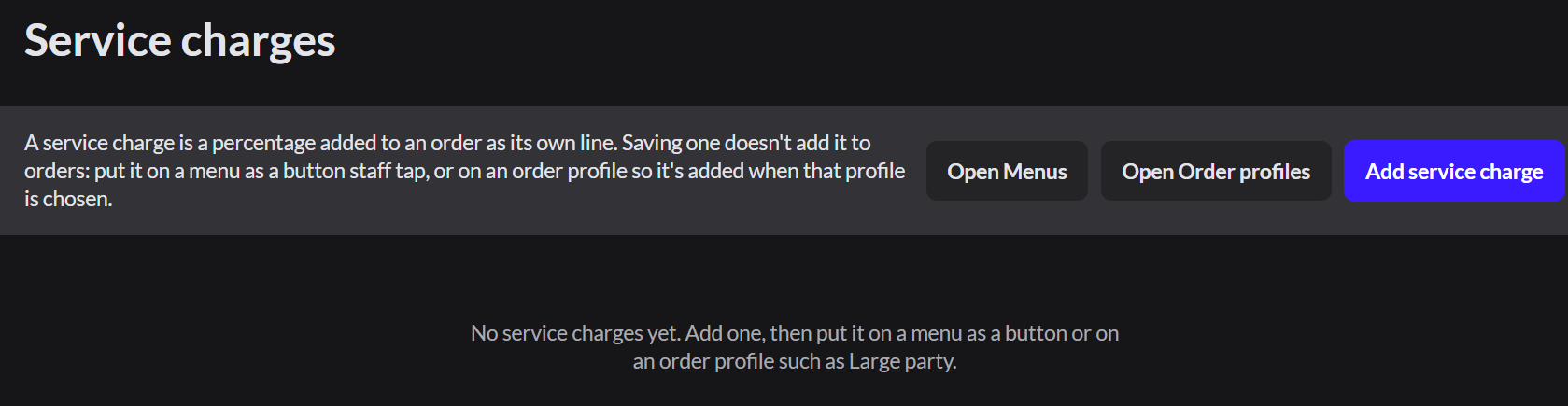
Saving a charge doesn't add it to orders. Put it on an order profile, so it's added when that profile is chosen.
To take a service charge off an order, staff tap the × on the charge line and click Remove.