Kiosk mode
Who: an Admin. When: a register should only ever show the POS.
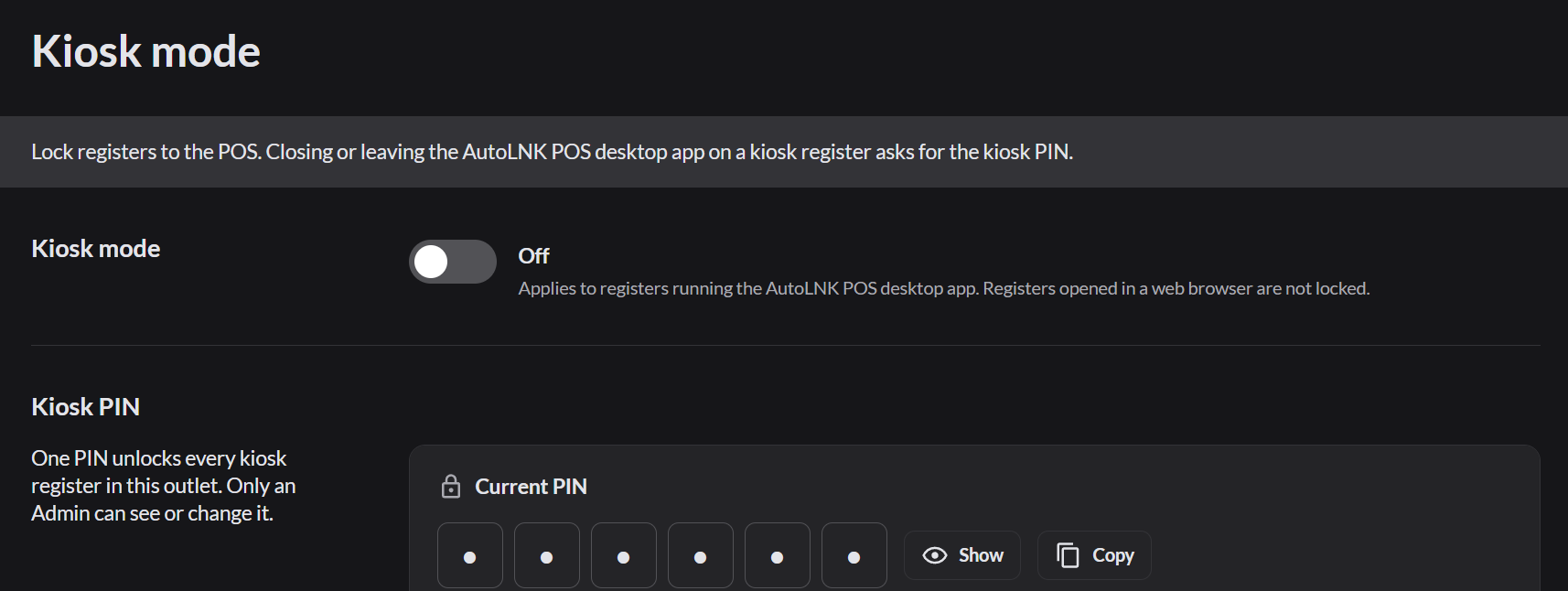
Kiosk mode locks a register to the POS. When someone closes or leaves the app on a kiosk register, the app asks for the kiosk PIN.
Go to POS › Kiosk mode.
Turn it on
- Set a PIN first. Click Set a PIN to choose your own, or click Generate PIN to create one.
- Turn on Kiosk mode.
- Choose All registers in this outlet or Only selected registers.
- Click Save changes.
About the kiosk PIN
- One PIN unlocks every kiosk register in the outlet.
- Only an Admin can see or change it. Click Show to see it or Copy to copy it.
- Share it only with team members who may close kiosk registers.
Kiosk mode applies to registers running the AutoLNK POS app. A register opened in a web browser isn't locked.