Kitchen display
Who: a manager sets it up, and kitchen team members use it. Cashiers can also set up kitchen stations unless an Admin has turned it off. When: the kitchen has a screen for orders.
Orders sent from a register show on the kitchen screen for the station that makes them. In the menus, this is called KDS, short for kitchen display system.
Quick version
On the kitchen screen: open the address › sign in › type the station's code.
Connect a kitchen screen
Go to KDS › Kitchen display.
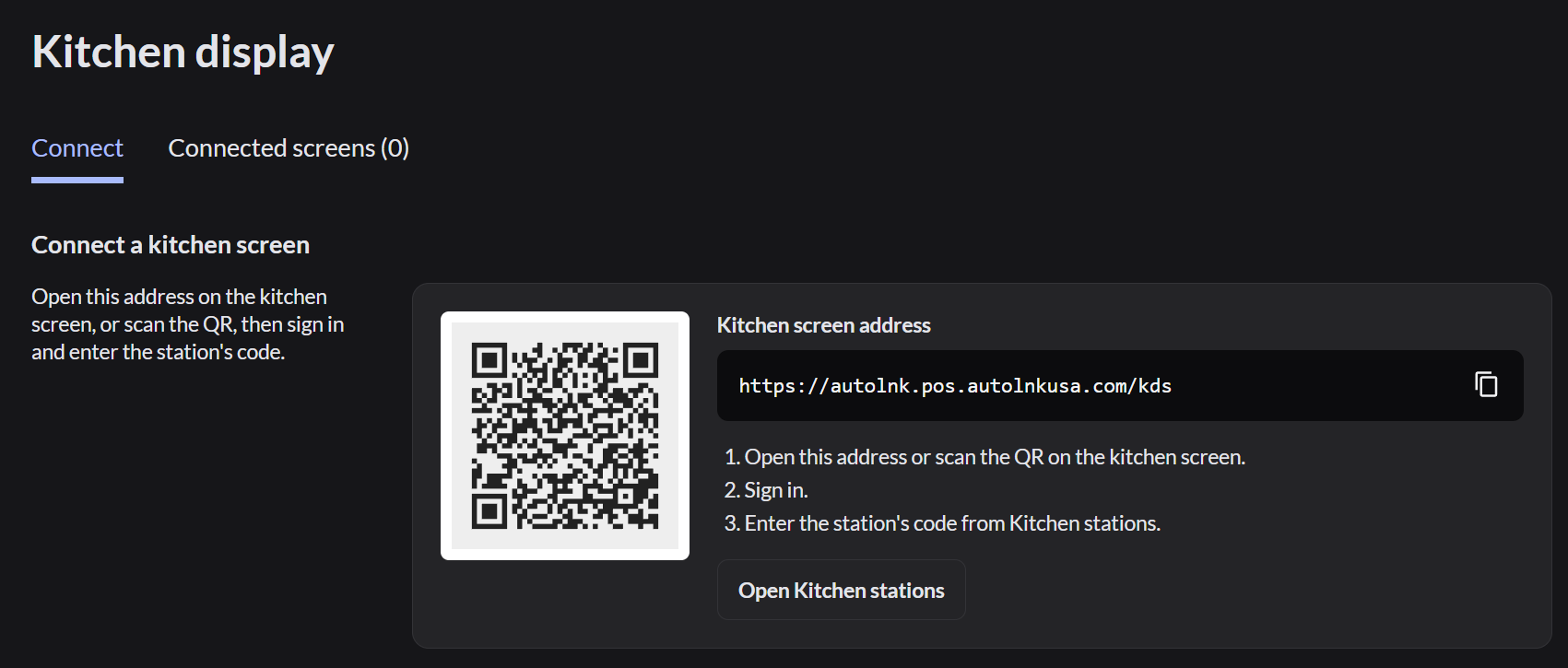
On the kitchen screen (a tablet or computer in the kitchen):
- Open the Kitchen screen address, or scan the QR code.
- Sign in with the Email address on your team member account and your password, then click Continue. Your username doesn't work here.
- Type the station's code from KDS › Kitchen stations and click Connect.
Only team members who work at the station's outlet can connect its kitchen screen.
The Connected screens tab lists every kitchen screen in use.
Use it in the kitchen
New orders appear as tickets, with the table, the time and each item. A bell rings for each new ticket. If the screen says Tap to turn on sound, tap the screen once.
| To do this | Do this |
|---|---|
| Move one item to the next stage (New, Preparing, Ready to collect, Completed) | Tap the item |
| Pick any stage for one item | Press and hold the item |
| Move the whole ticket to the next stage | Double-tap the top of the ticket |
| Pick any stage for the whole ticket, such as On hold | Tap the ticket's header |
| Undo a ticket you just completed | Tap Undo at the bottom. It shows for 5 seconds |
| Bring back a completed ticket | Tap Completed, tap the ticket, and choose a stage |
Tapping an item twice moves that item two stages.
When every item on a ticket is completed, the ticket moves to Completed. Completed tickets stay there until the register is closed at the end of the shift.
Use the chips at the top to filter tickets by stage or by order type (Dine-in, Pickup, Delivery).
The buttons on the kitchen screen depend on the station's settings. To change them, click the pencil in KDS › Kitchen stations.
If it doesn't work
- The code isn't accepted: check it against KDS › Kitchen stations. Each station has its own code.
- An order doesn't show: the item may not belong to this station. A manager can check which items the station makes. More about kitchen stations
- The screen is blank or frozen: tell a manager and take orders to the kitchen by hand until it's working again.