Add a user
Who: manager or Admin. When: a new team member starts.
Every person gets their own sign-in. Sales, refunds and cash movements are recorded under it.
Quick version
Setup › Users › Add user › username, display name, email, outlet, role, password › Save.
1. Open Users
Go to Setup › Users and click Add user.
2. Fill in the form
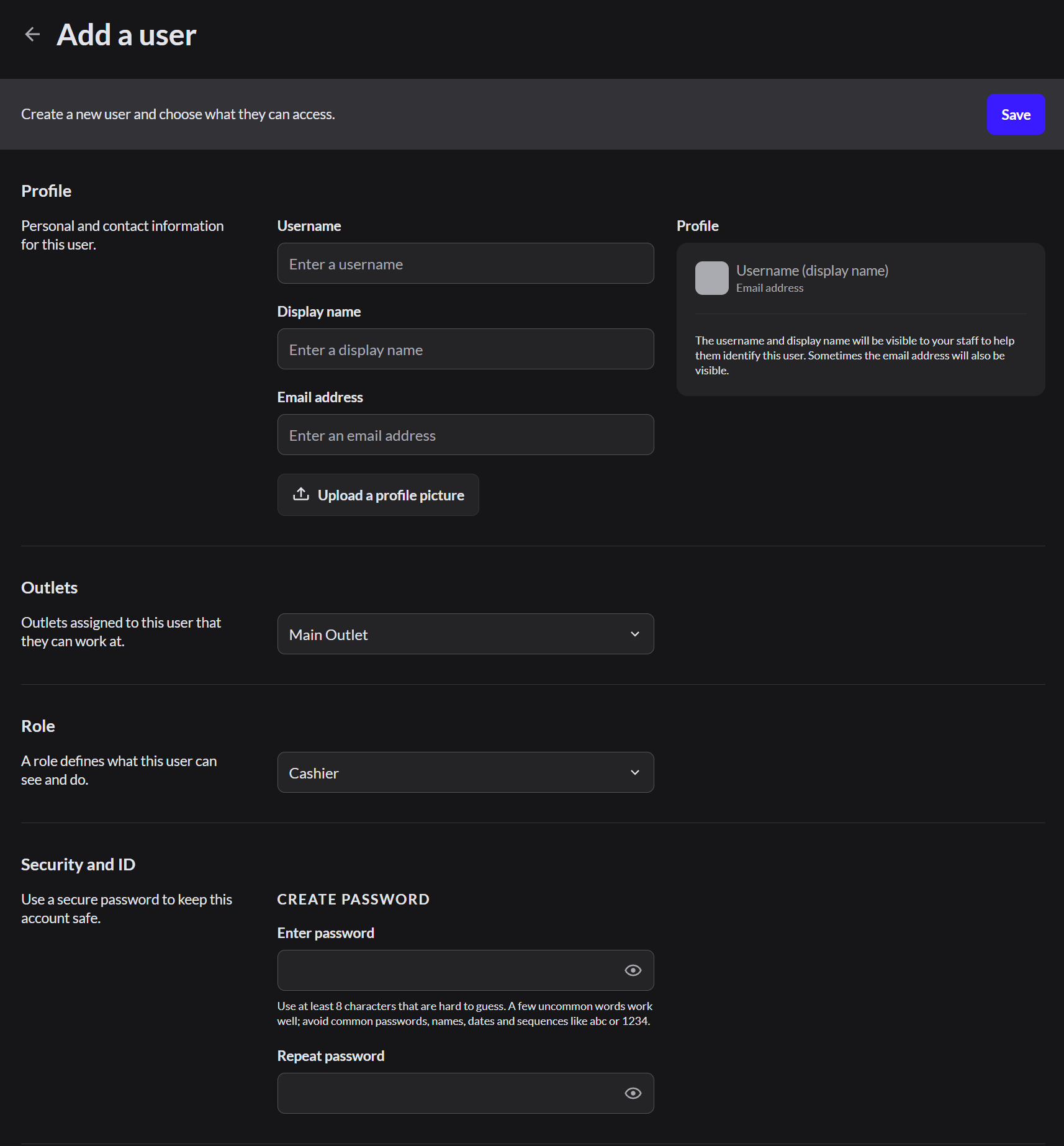
| Field | What to enter |
|---|---|
| Username | What they type to sign in, such as sam.rivera |
| Display name | The name team members see, such as Sam Rivera |
| Email address | Their email. They use it to sign in to the kitchen screen. You can't change it later |
| Outlets | Where they're allowed to work |
| Role | Cashier, Manager or Admin. More about roles |
| Password | At least 8 characters. Type it twice |
3. Save
Click Save at the top right. Give the new person their username and password in person.
Never share one sign-in between people. If someone leaves, delete their user. Don't hand the account to the next person.
Delete a user
- Go to Setup › Users and click the person's name.
- Scroll down and click Delete user, then Delete.
They're signed out and marked for deletion. To undo it within 14 days, click Restore user next to them in the Users list. After 14 days, their personal details are deleted for good, and their past sales show as Anonymous User.
Change a team member's password
Use this when someone forgets their password.
- Go to Setup › Users and click the person's name.
- Under Security and ID, type the new password in Enter password and Repeat password.
- Click Save changes at the top.
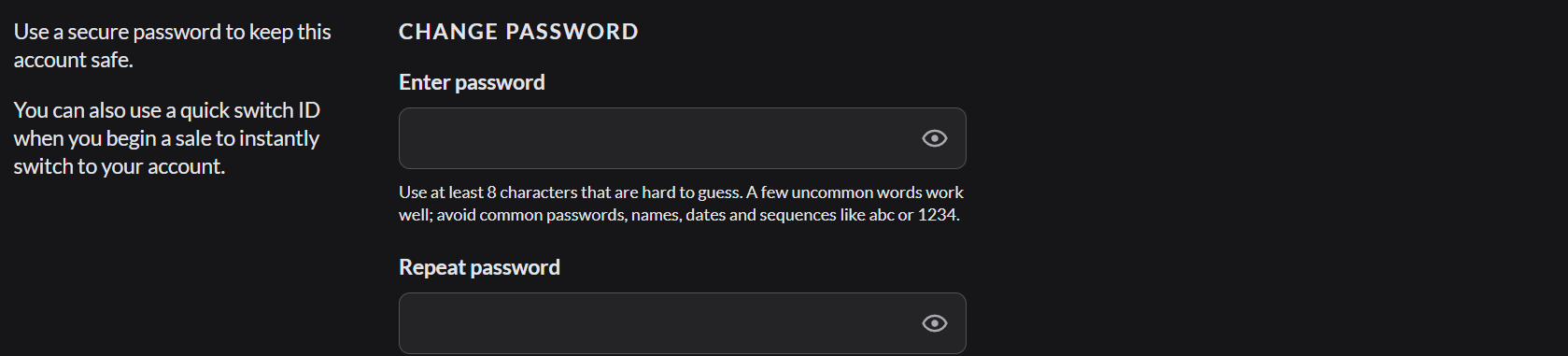
They're signed out on every register and sign in with the new password. Give it to them in person.
Managers can change passwords for cashiers. Only an Admin can change a manager's password.
If it doesn't work
- The username is taken: add a number or use their full name.
- You can't pick Manager or Admin: your own role doesn't allow creating that role. Ask an Admin.