Exchange an item
Who: cashier or manager. Cashiers can do this unless an Admin has turned it off. When: a customer brings back a retail item and wants a different one.
Exchanges work in Retail mode. For a refund with no new item: How to refund a sale
Quick version
Sell › Sales history › open the receipt › Return items › keep only the item coming back › add the new item › Exchange › settle the difference › Complete sale.
1. Find the sale
Open your register first. Go to Sell › Sales history, find the receipt, open it, and click Return items. You can also use the Process return tab and click Process return on the sale.
2. Choose what's coming back
The Sell screen opens with every item from the sale as a minus line. Remove the items the customer is keeping, so only the returned item is left.
3. Add the new item
Tap or scan the item the customer is taking instead. The returned item shows as a minus line, and the pay button now says Exchange with the difference.
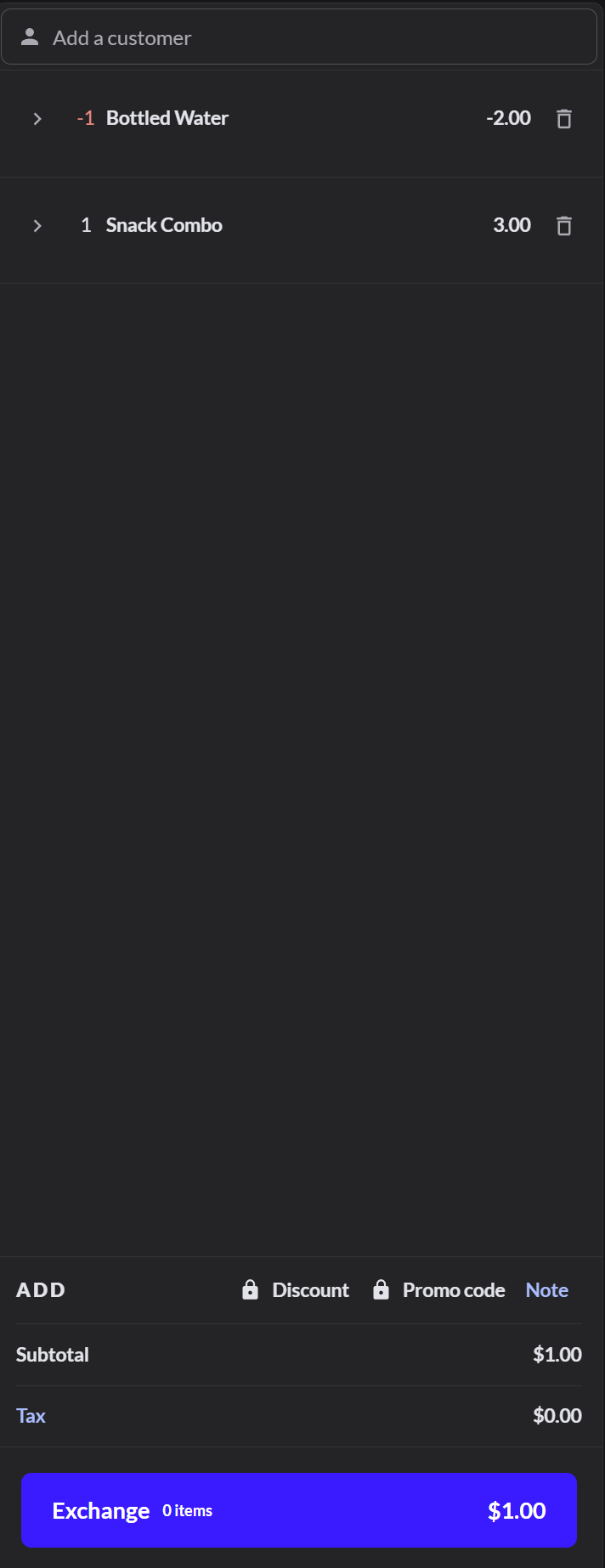
4. Settle the difference
Click Exchange.
- The customer owes money: take payment as usual, then click Complete sale.
- It's even: click Complete exchange, then Complete sale.
- The customer gets money back: choose how to refund them, such as Cash or Card, then click Complete sale. A card refund goes back to the card they paid with. A card can only take back what was paid on it. Refund the rest another way.
To give store credit instead, add the customer to the sale first. Then choose store credit as the refund method.