Restaurant stock and waste
Who: manager or Admin. When: food is thrown away, stock moves to a stand, or the kitchen makes food in batches.
Quick version
Inventory › Waste › stock location › waste reason › add items › Save details.
Record waste
- In Restaurant mode, go to Inventory › Waste.
- Choose the Stock location and a Waste reason.
- Search for or scan each item and type how many were thrown away.
- Add Notes if needed, then click Save details.
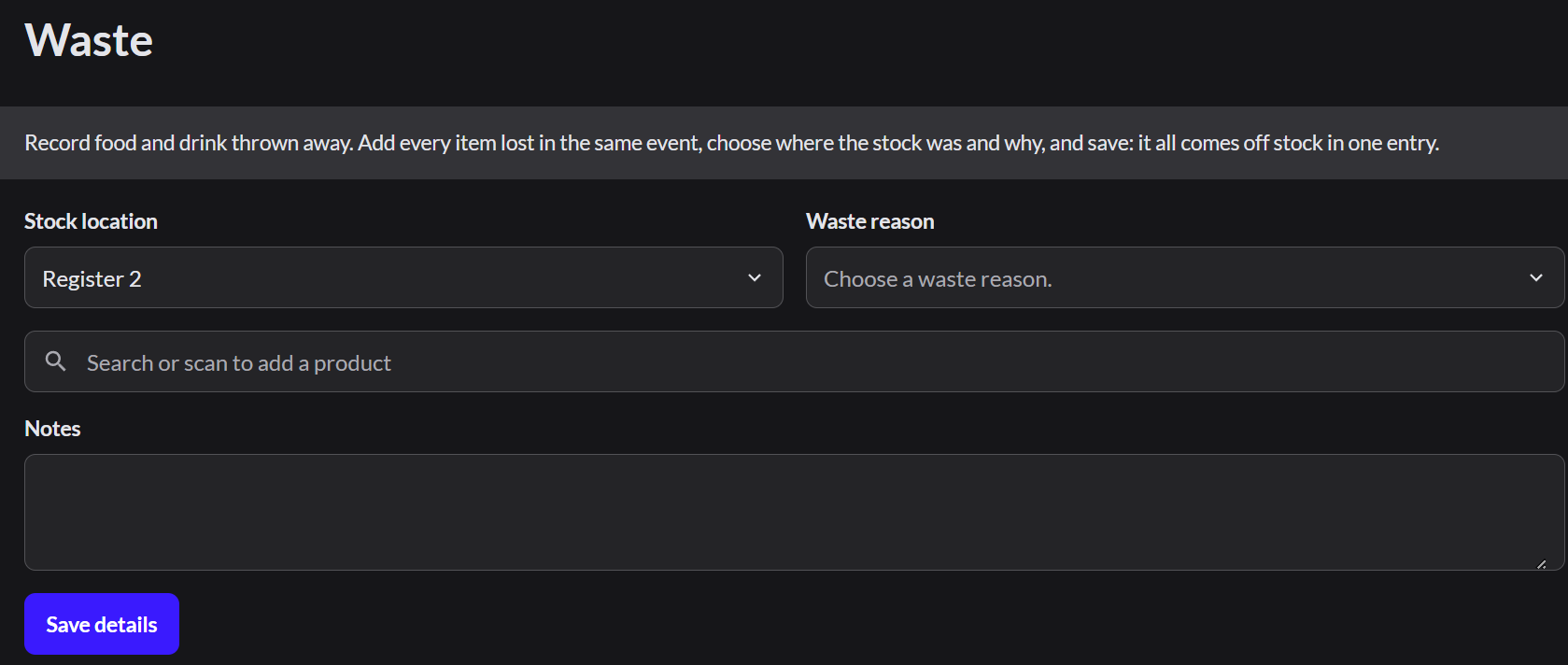
To add waste reasons, go to Inventory › Waste reasons and click Add reason.
Move stock to a register
A Restaurant register can keep its own stock. To move stock from the outlet to it:
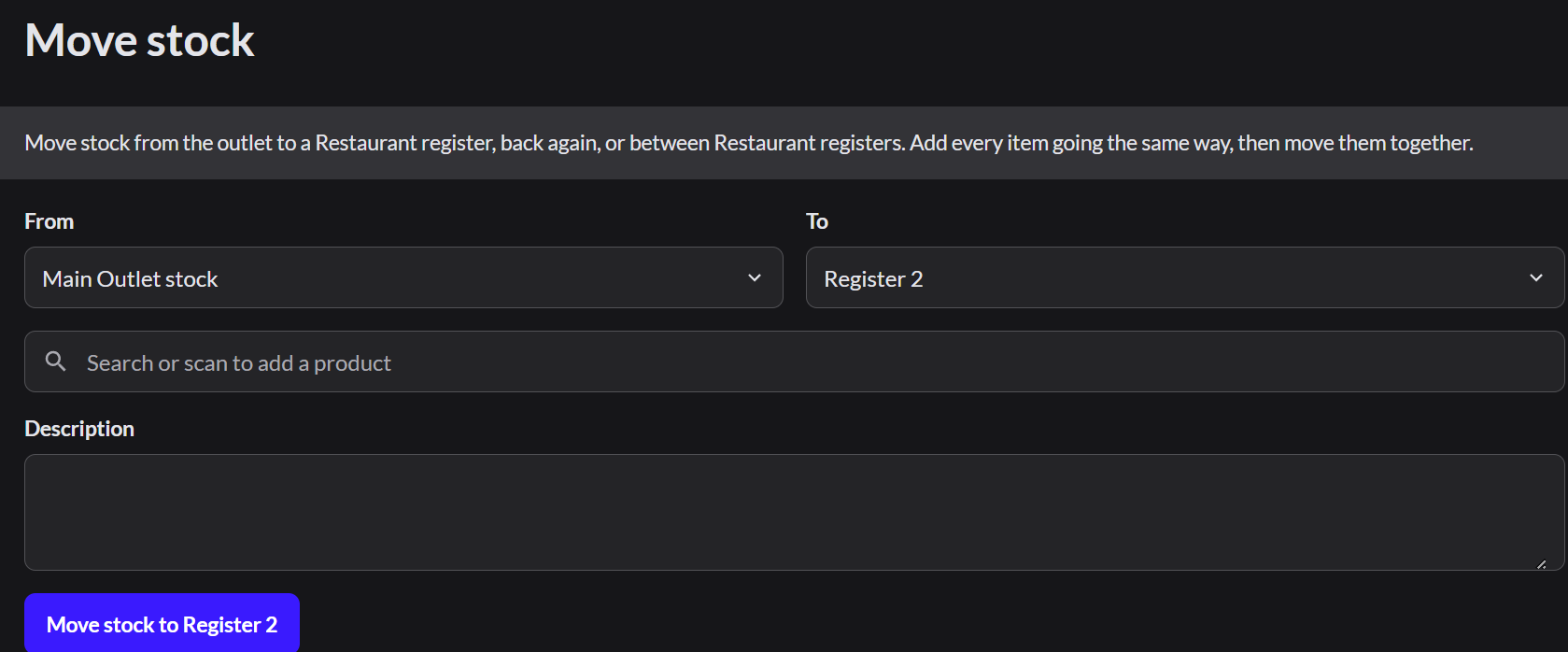
- Go to Inventory › Move stock.
- Choose where it comes From and goes To.
- Search for each item and type the Quantity.
- Click Move stock to and the place. The page says how many items were moved.
Make food in batches
For items made ahead in batches, such as chili:
- Go to Inventory › Batches and click Create new batch.
- Choose the Item, then click Start batch.
- When it's done, click Finish batch, type the Units produced, and click Finish batch.
Finished batches are listed in Inventory › Batch history.
Set up a recipe
A recipe lists the ingredients that go into an item.
- Go to Catalog › Products and open the item.
- Set Product type to Composite product.
- In Recipe, search for each ingredient and type the Quantity and Unit.
- Choose Made to order or Made in batches, then click Save recipe.
For stock counts and deliveries: How to count stock and receive deliveries