Organizer sign-in
Who: the organizer, who holds the venue's AutoLNK account. When: setting up a computer, or before any staff accounts exist.
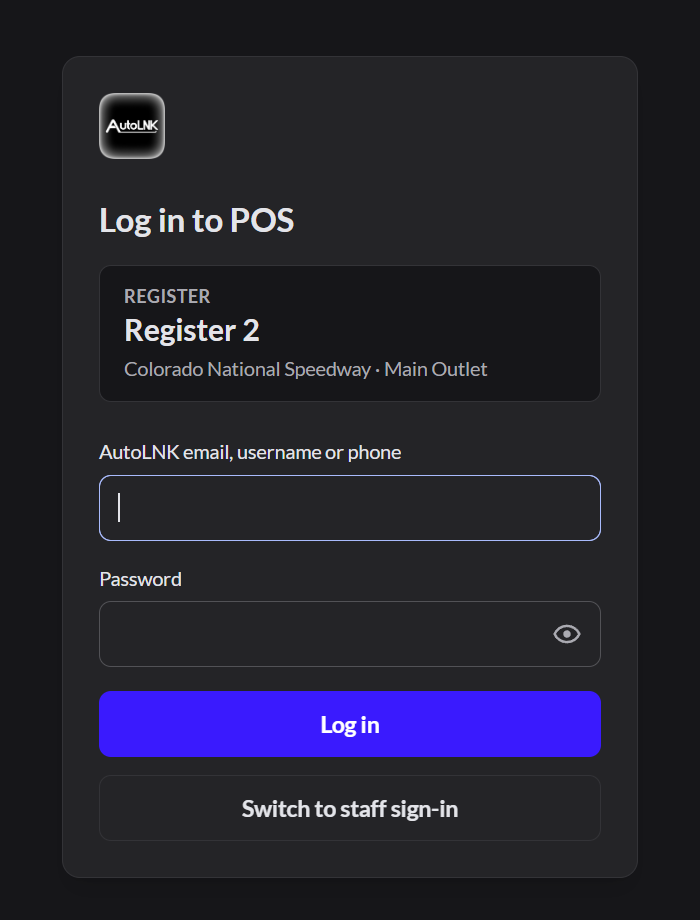
- Open AutoLNK POS.
- If the first box says Username, click Switch to organizer sign-in.
- Type your AutoLNK email, username or phone.
- Type your AutoLNK password.
- Click Log in.
This is your AutoLNK account, not a POS username. Team members can't use this screen.
If it doesn't work
- "This AutoLNK account isn't the organizer of any organization": you're using a personal account. Use the organizer's account, or use Staff sign-in.Staff sign-in
- "Your organization doesn't have POS yet": ask AutoLNK to turn POS on for your organization.
- "Too many sign-in attempts": wait the time shown, then try again.