Park and retrieve a sale
Who: cashier. When: a customer steps away before paying, and you want to serve the next customer.
Quick version
Park sale › type a note › Park sale. Later: Retrieve sale › arrow next to the sale › pick your name.
1. Park the sale
Click Park sale at the top right. Type a note so other team members can find it, then click Park sale.
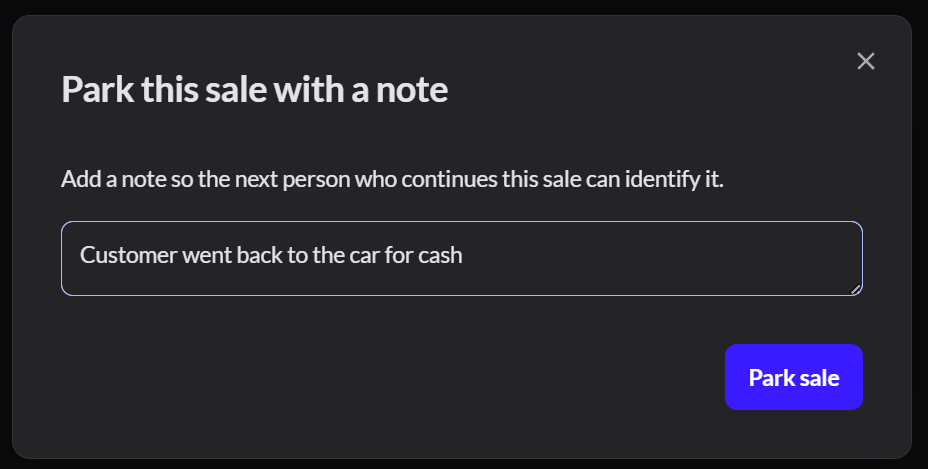
You can now serve the next customer.
2. Find the parked sale
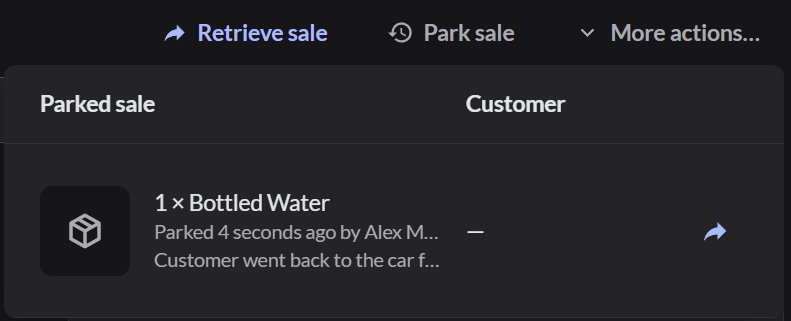
When the customer is back, click Retrieve sale and click the arrow next to their sale.
If a sale is already on screen, Replace current sale? appears. Park that sale first, or it's replaced.
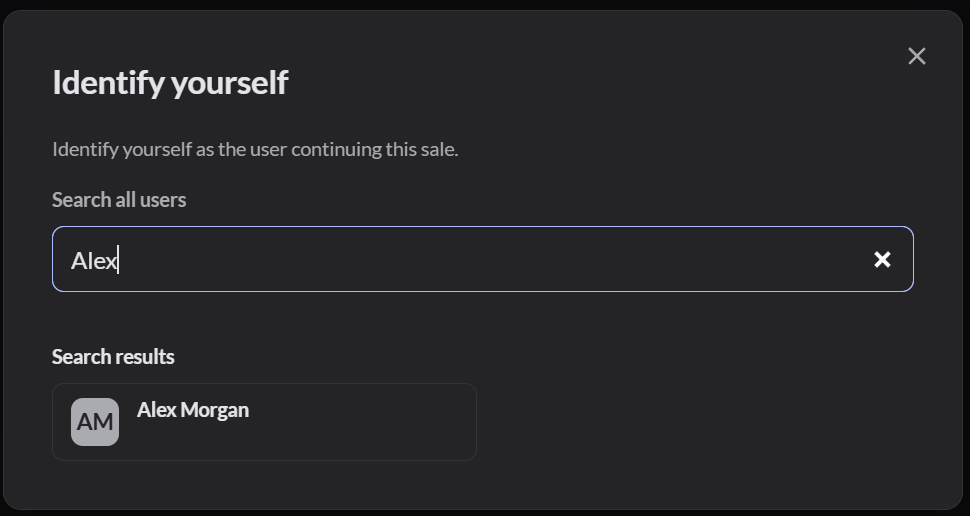
3. Say who is continuing
Search for your name and click it. The sale is recorded under your name.
4. Finish the sale
The items, discount and note are restored. Click Pay as usual.
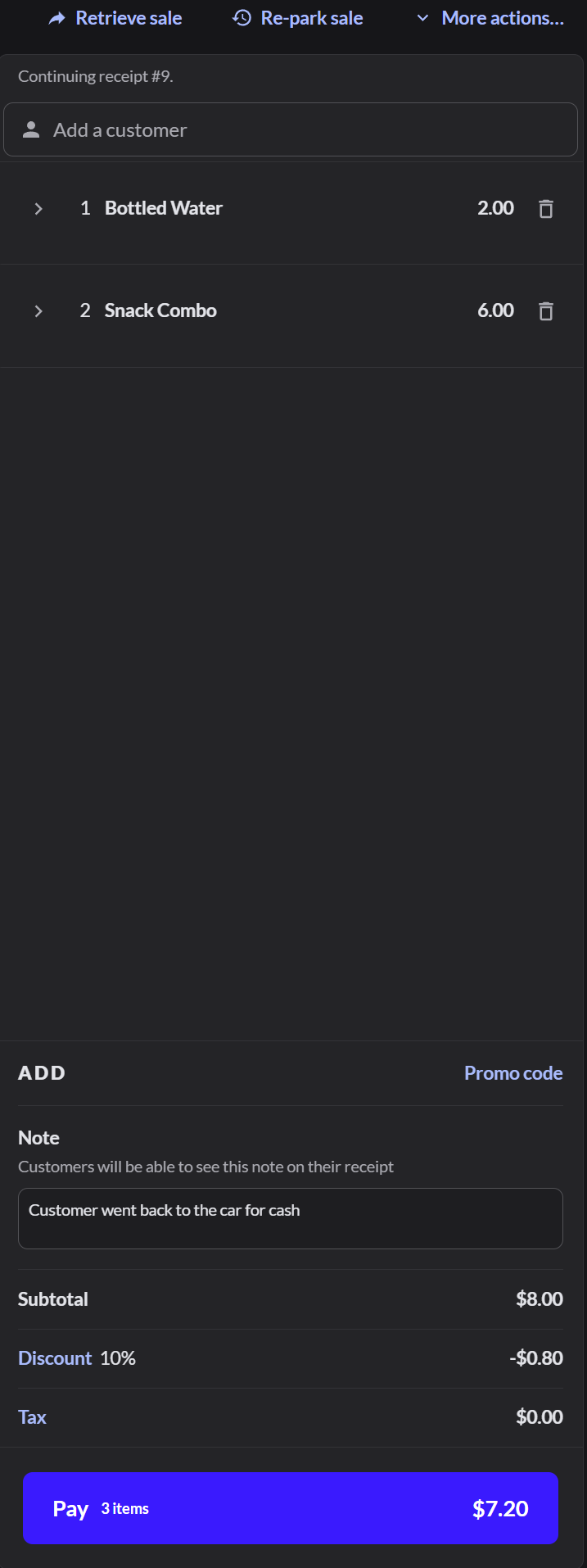
The note on a parked sale prints on the customer's receipt. Don't write anything you wouldn't want the customer to read.
If it doesn't work
- The sale isn't in the list: it may have been parked on another register's outlet, or it's already finished.
- Before you close the register: check Retrieve sale to make sure no sales are left parked.