Take payment and tips
Who: server or cashier. When: the table is ready to pay.
Quick version
Tables › tap the table › Select › Pay › Cash › amount › tip › Pay.
1. Open the table's order
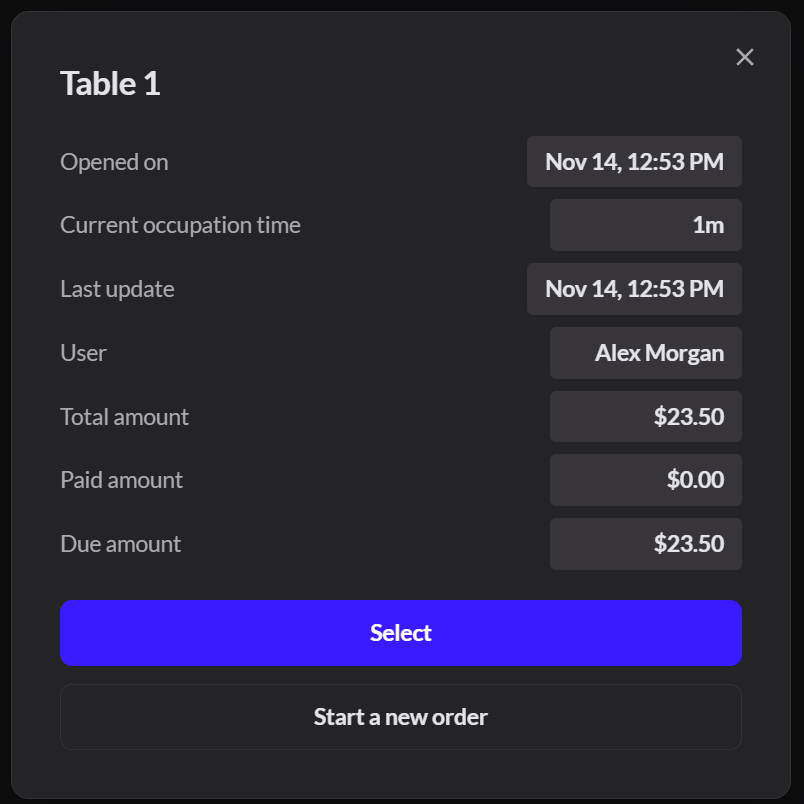
Go to Sell › Tables and tap the table. Check the total, then click Select.
For a tab, go to Sell › Orders, click Bar tabs, and click the tab.
2. Click Pay
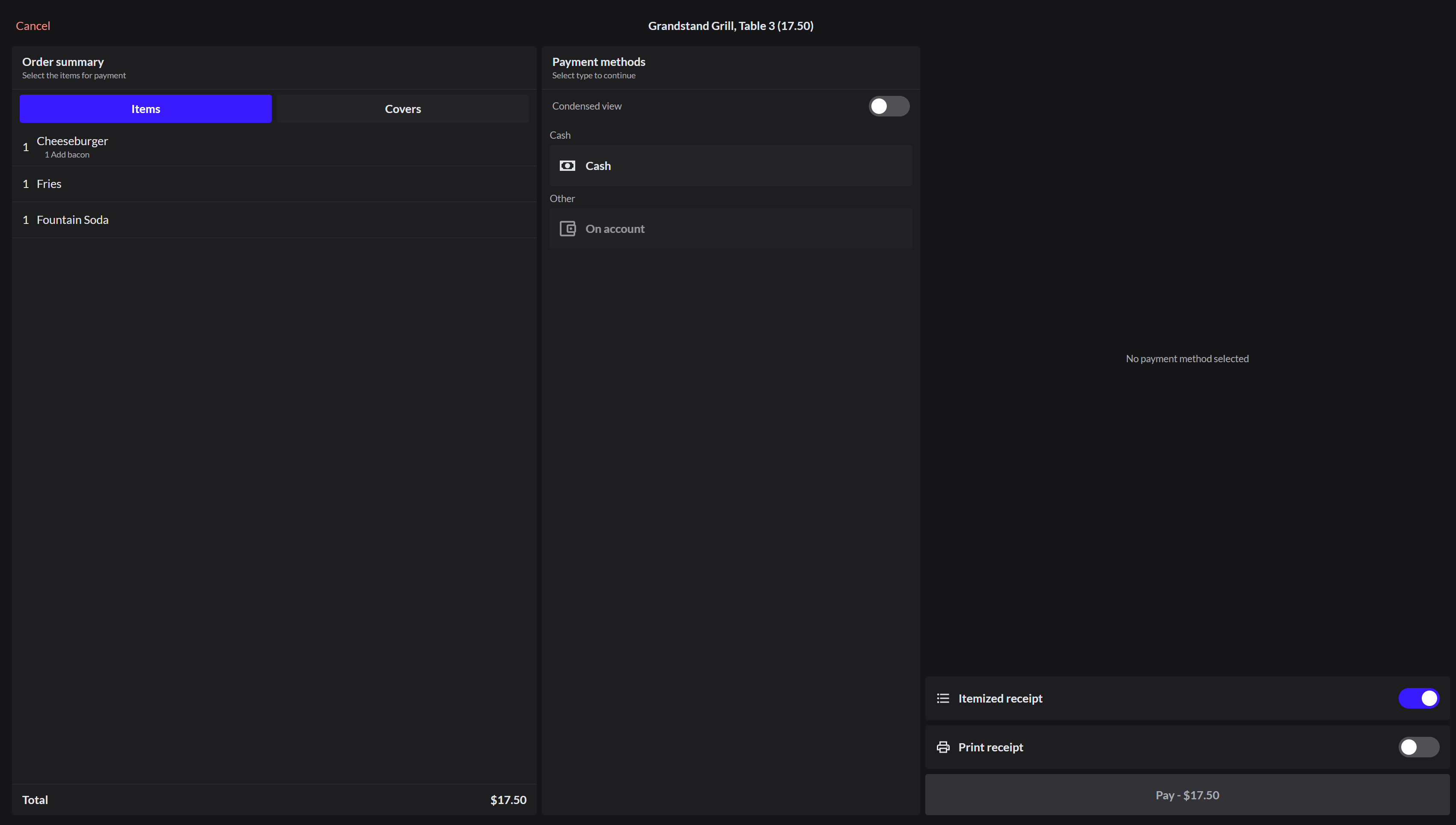
3. Choose how they pay
For cash, click Cash. Tap the amount the customer handed you, or tap Custom to type it.
For a card payment, click Card. How to take a card payment If you don't type a tip on the POS, a card reader that supports tipping asks the customer for a tip.
4. Add a tip
Open Add tip and tap the amount, or tap Custom.
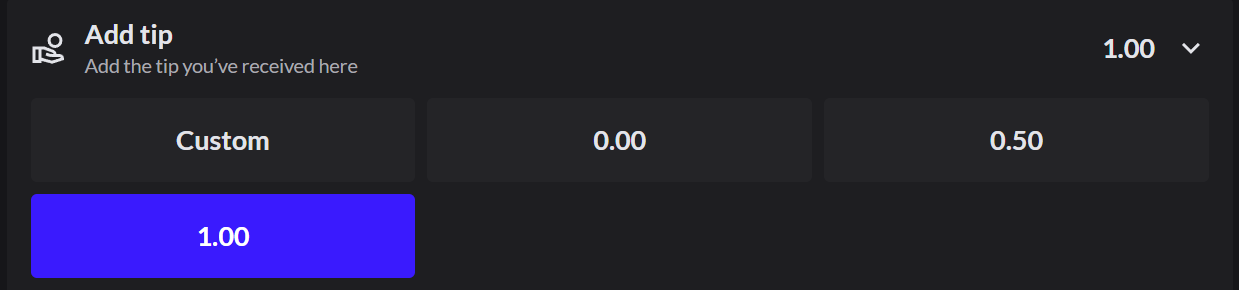
You can also add a tip before paying: click Actions at the top of the order, then Add tip. Type the amount and click Confirm.
Add tip shows only when tips are turned on for this register, your role allows Tipping, and the payment type is Cash or Card.
5. Pay
Click Pay. The screen shows Amount paid and any Change due for a few seconds, then the table is cleared.
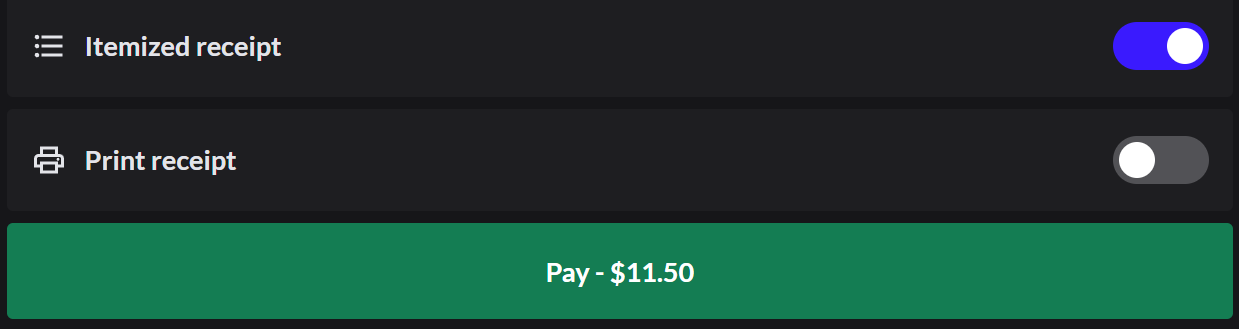
If the customer wants a receipt, turn on Print receipt first.
Take part of the payment
Use this when a guest pays part of the check, and the rest is paid another way or by someone else.
- On the pay screen, choose how they pay.
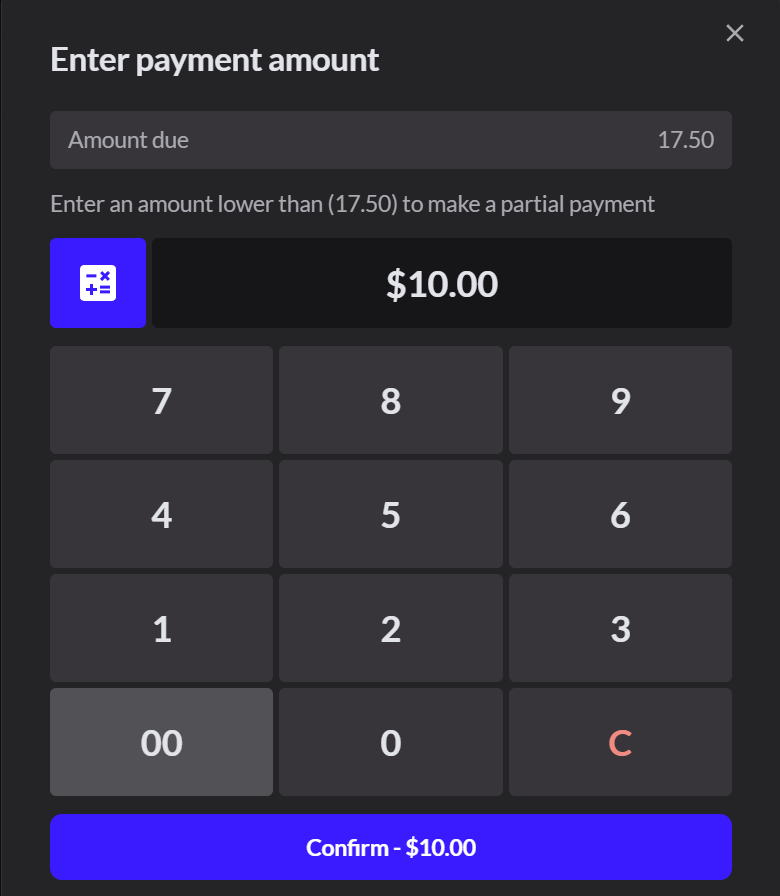
- Click Payment amount (it says Edit for partial payments).
- Type the amount and click Confirm - $10.00 (it shows the amount you typed).
- Click Pay. The payment shows under Payments taken, and the rest stays due.
- Take the rest the same way.
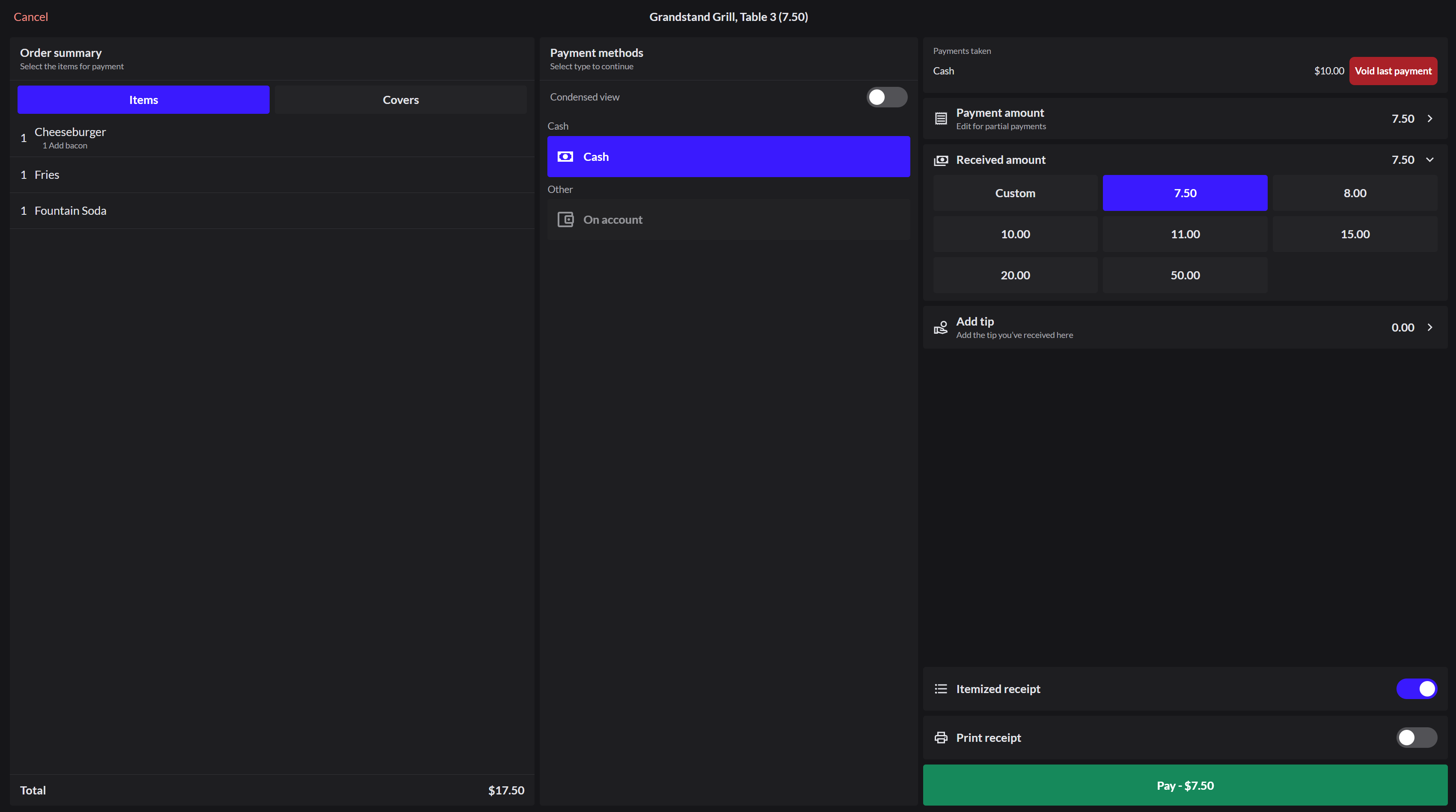
To take back the last payment, click Void last payment next to it. To split by item or by guest instead: How to split a check
If the pay screen asks how many covers (guests) there are, type the number and click Confirm. A manager sets which items need a cover count.
If it doesn't work
- No Card option: this register has no card reader. Take cash, or ask a manager. Managers: How to connect a card reader
- The table needs to pay separately: How to split a check
- Select is gray: someone else started this table (red on the Tables screen), and your role can't open it. Ask them or a manager to give the order to you.Give an order to another server
- "Payments have been taken on this order": finish the payment, or click Void last payment on the pay screen first.
- "The order hasn't finished saving, so it can't be paid yet": check the internet connection and try again.