Mark an item sold out
Who: manager or Admin. When: the kitchen runs out of something, or only has a few left.
You can mark a menu item Limited (only a set number left) or Unavailable (sold out). The change applies to this register only. Other registers are not affected.
Quick version
Catalog › Availability › Change next to the item › Limited or Unavailable › Save.
1. Open Availability
In Restaurant mode, go to Catalog › Availability. The list shows every item on this register's menu.
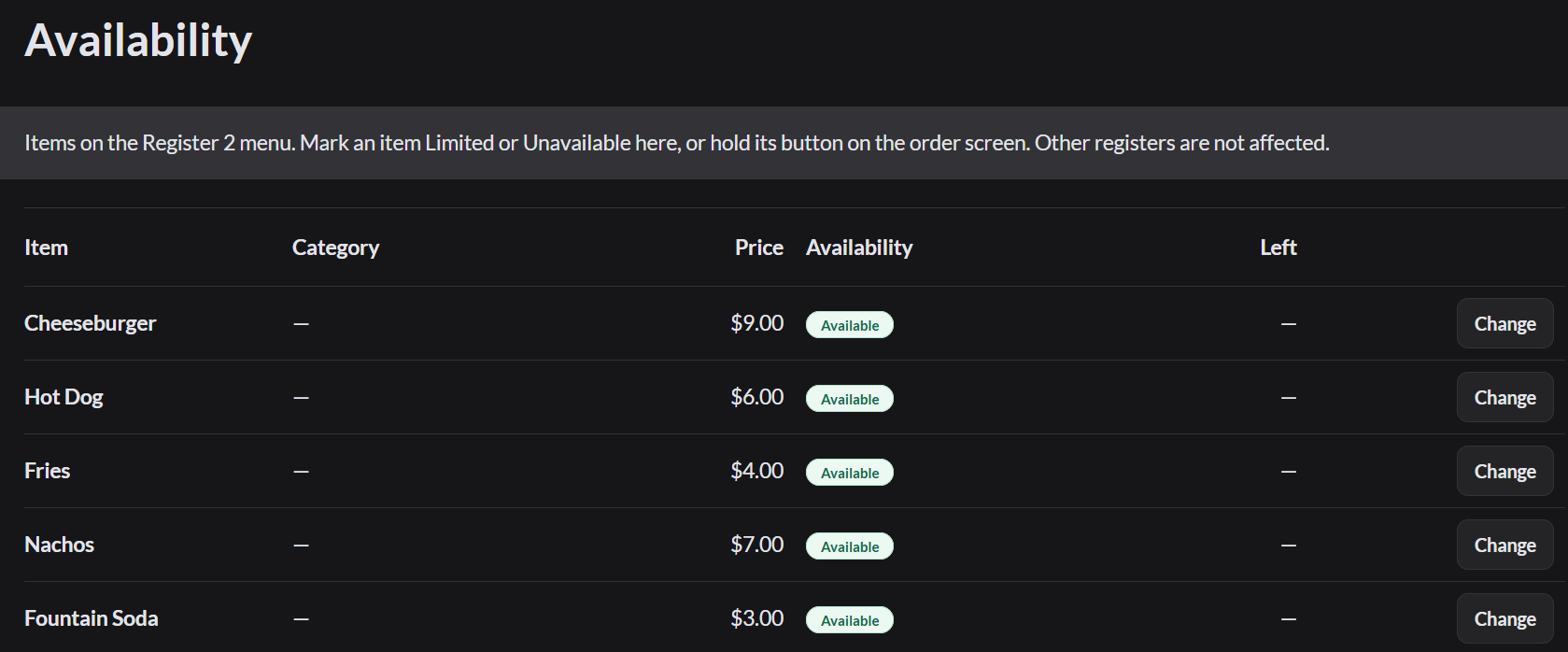
2. Change the item
- Click Change next to the item.
- Choose one:
- Limited: type How many are left?. The number counts down as orders take them.
- Unavailable: cashiers can't add it until you set it back to Available.
- Click Save.
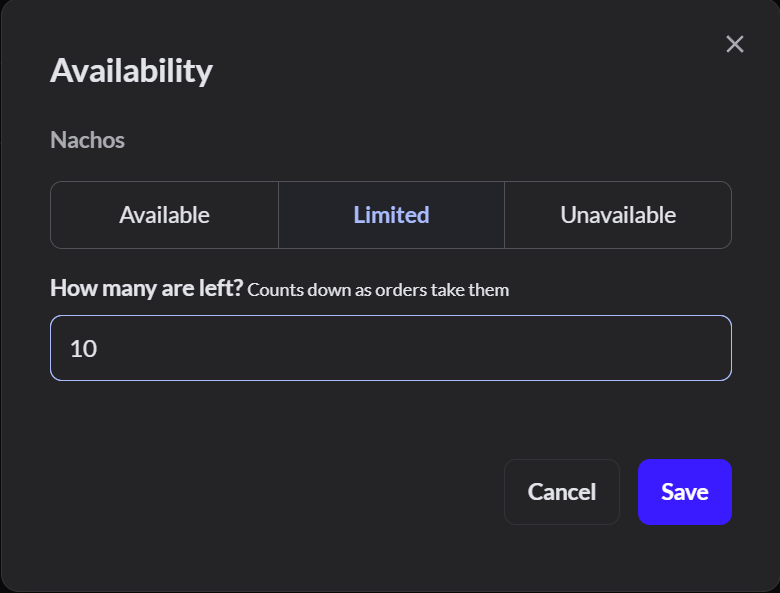
On the order screen, a limited item shows how many are left. A sold-out item shows 0.
Make it available again
Click Change next to the item, choose Available, and click Save.
You can also hold an item's button on the order screen to change its availability.
If it doesn't work
- There's no Availability page: switch to Restaurant. If it's still missing, your role doesn't allow sales restrictions. Ask an Admin.
- "There aren't enough items available to fulfill your order": the item is sold out or has fewer left than you're adding.