Refund a sale
Who: cashier or manager. Cashiers can do this unless an Admin has turned it off. When: a customer returns items from a retail sale.
Quick version
Sell › Sales history › open the receipt › Return items › Refund › Cash › Complete sale.
1. Find the receipt
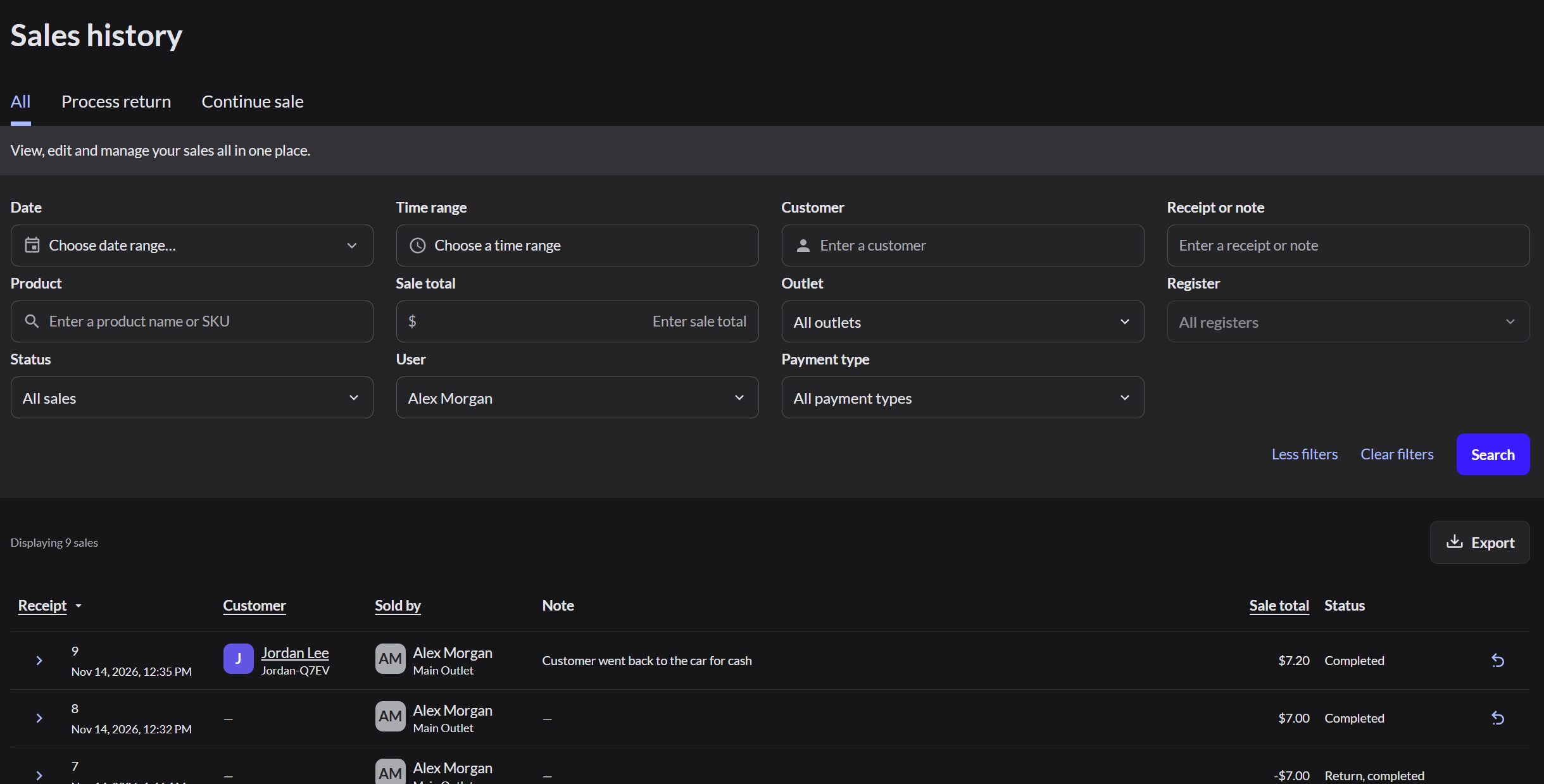
Open your register first. Go to Sell › Sales history. Use the filters to find it. You can filter by receipt number, date or customer. Under More filters, you can also filter by the user who sold it.
2. Open it and click Return items
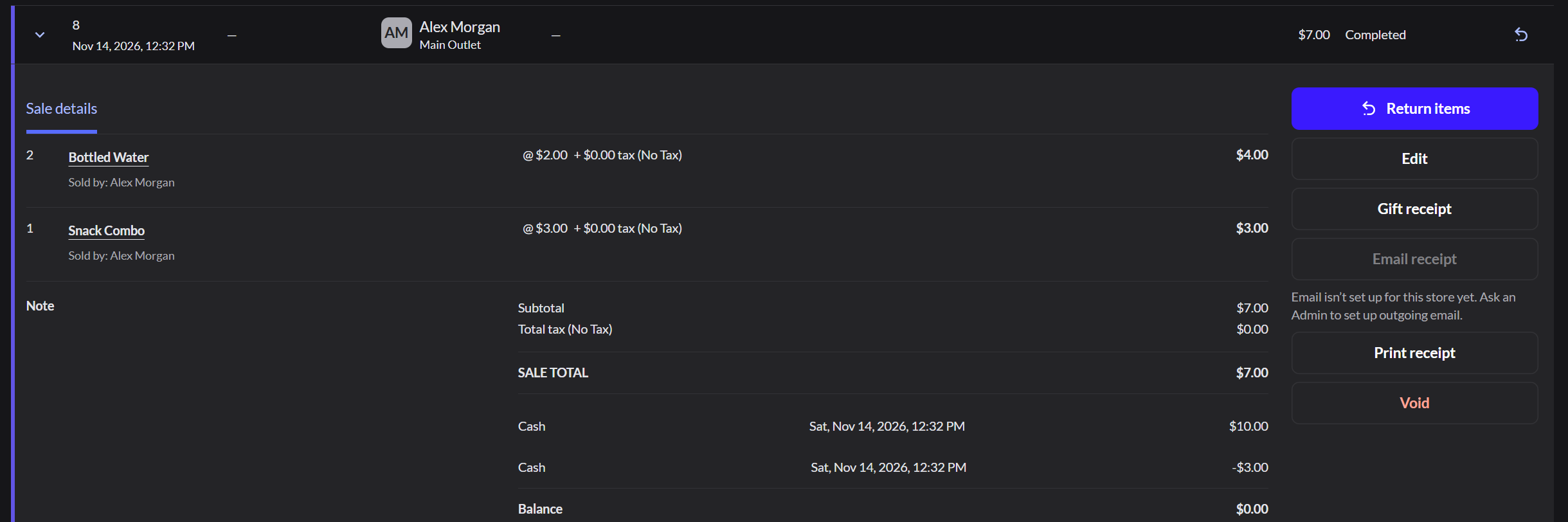
Click the arrow next to the receipt. Check the items and total, then click Return items.
3. Check the returned items
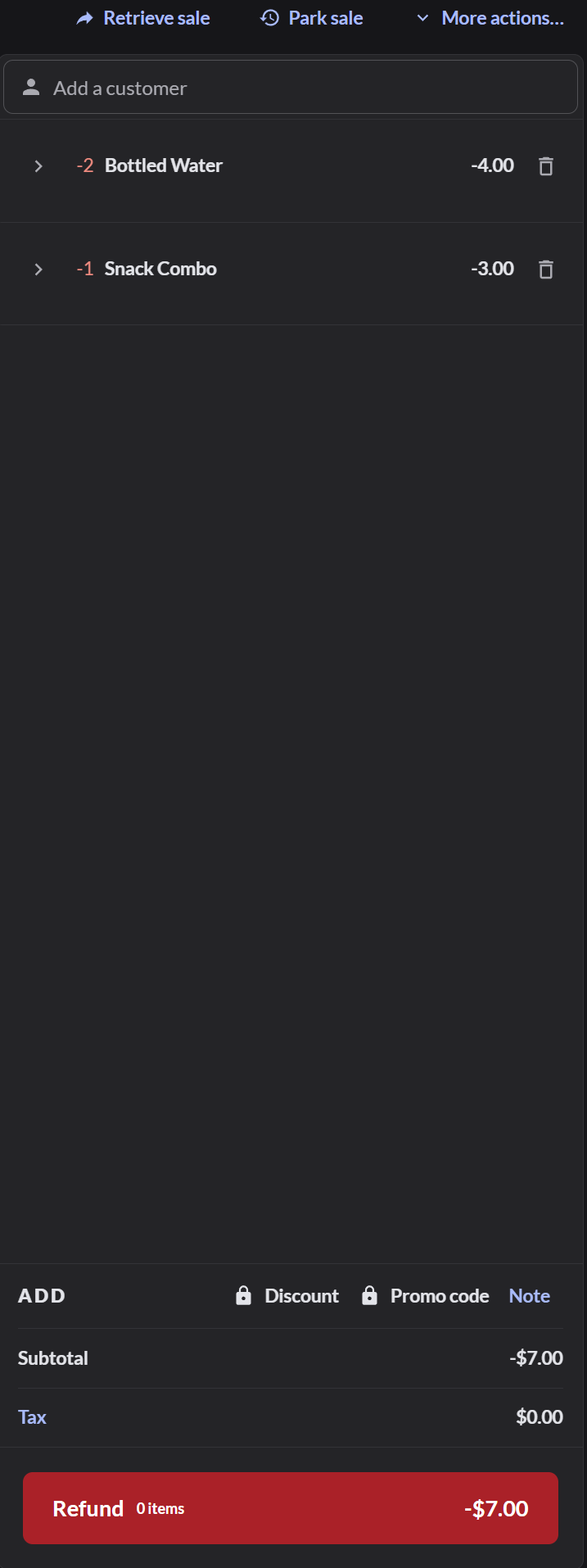
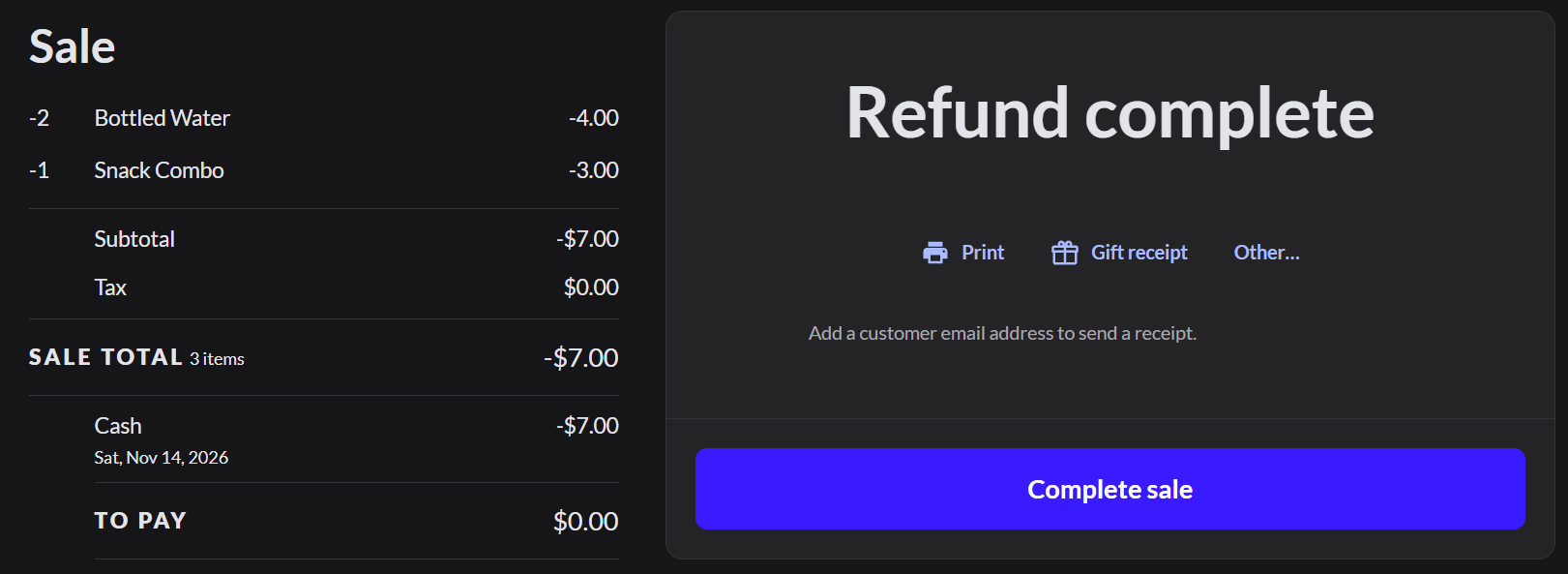
The items appear as minus lines. Remove any items the customer is keeping. Click Refund.
4. Choose how the money goes back
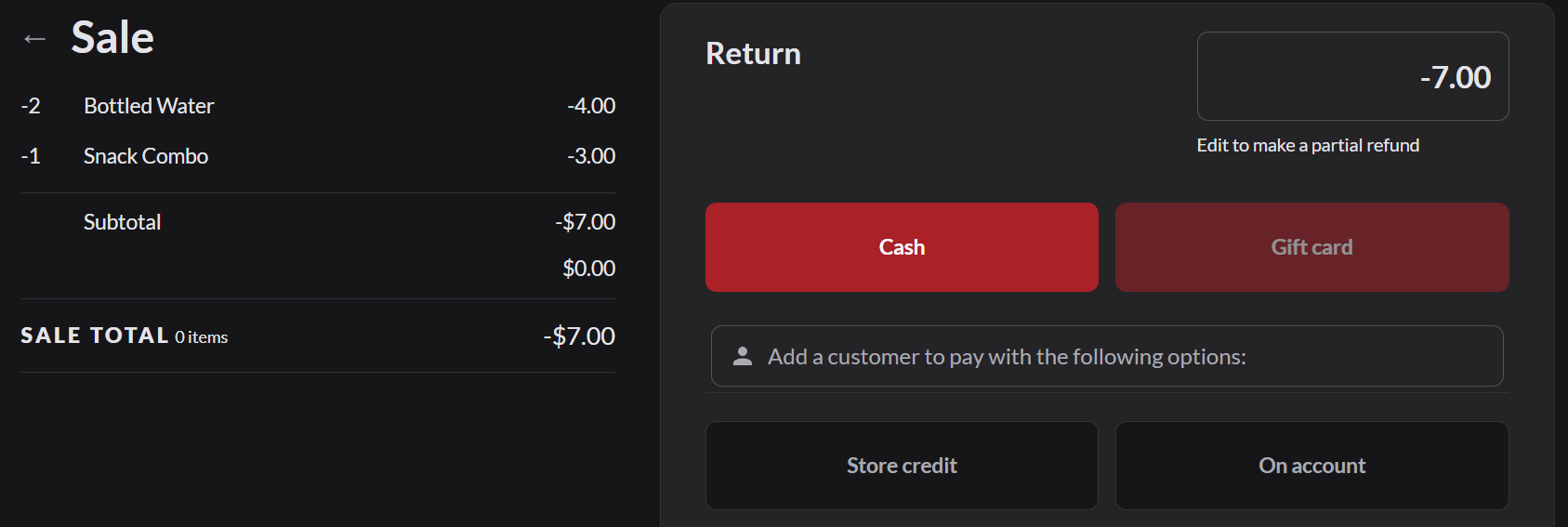
For a cash sale, click Cash.
For a sale paid by card, choose the refund to the card. The money goes back to the card used for the sale. The customer doesn't need to present the card again. Wait for Refund approved. A card can only take back what was paid on it. Refund the rest another way.
5. Hand over the money and finish
Give the customer the refund, then click Complete sale.
If it doesn't work
- Return items is grayed out: the receipt has already been fully returned. Items that were already returned can't be returned again.
- "Resume parked return?": someone started this return earlier. Click Resume return to carry on, or Start new return to discard the parked return and start again.
- Card refund failed: nothing went back to the card and the return isn't finished. Try the card again, or choose another refund method.
- Card refund not confirmed yet: the card service hasn't finished. Click Check payment status. Don't refund the customer another way until it's settled.
- Restaurant orders use Refund order instead. How to refund a restaurant order