Tour of the screen
Who: everyone. Time: two minutes.
AutoLNK POS has three parts: the top bar, the menu on the left, and the page in the middle.
The top bar

| Part | What it does |
|---|---|
| Retail / Restaurant | Switches the whole app between retail sales and food orders |
| Search | Finds a product, customer or page from anywhere |
| Card reader | Shows whether a card reader is connected to this register |
| Sun | Switches between the dark and light look |
| Bell | Shows your notifications |
| Your name | Lets you switch user, clock in, or sign out |
The menu on the left
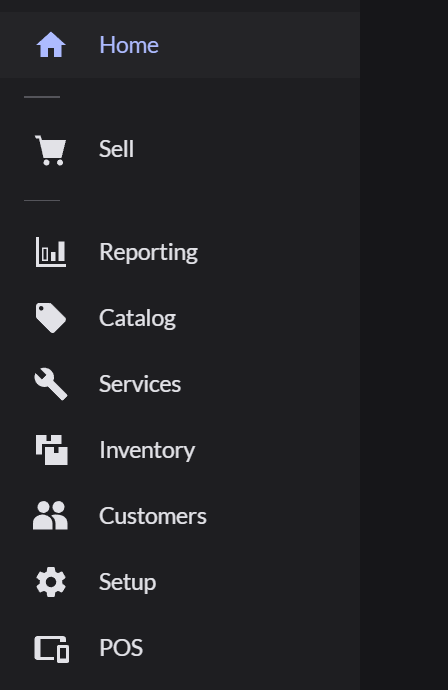
Click a section to open its pages.
| Section | You use it to |
|---|---|
| Home | See today's sales |
| Sell | Ring up customers, open and close the register, look up past sales, move cash |
| Reporting | Read sales and payment totals |
| Catalog | Add and edit products and prices |
| Services | Track service jobs |
| Inventory | Check stock, count it, order more |
| Customers | Look up and edit customers |
| Setup | Set up printers, users, taxes and payment types. Everyone can open Printers and Users. Sales taxes and Payment types are Admin only |
| POS | Manage devices, register connections, card readers and Kiosk mode. Devices, Register connections and Kiosk mode are Admin only. Managers can change card readers |
The app menu
The small menu at the very top left of the window controls the computer. You don't use it for selling. More about the app menu