Connect a new computer
Who: a team member with a connection code from an Admin, an Admin, or the organizer. When: the first time AutoLNK POS is opened on a computer.
You need to connect a computer to your store once before anyone can sell on it. The first screen says Welcome to AutoLNK POS and offers Connect to a store and I'm an Organizer on AutoLNK. Connect to a store then offers two ways to connect.
| Way | Use it when | What you need |
|---|---|---|
| Connect to a store › Connect using a connection code | A team member is setting up the computer | A 12-digit code from an Admin |
| Connect to a store › Connect on the same network | The computer is on the same Wi-Fi as the store | A 6-digit setup code, and an Admin to approve it |
| I'm an Organizer on AutoLNK | The organizer is at the computer | The organizer's AutoLNK account |
With a connection code
- Click Connect to a store, then Connect using a connection code.
- Type the 12-digit code an Admin gave you and click Connect.
- Wait for "This computer is now a register. Staff can sign in and sell."
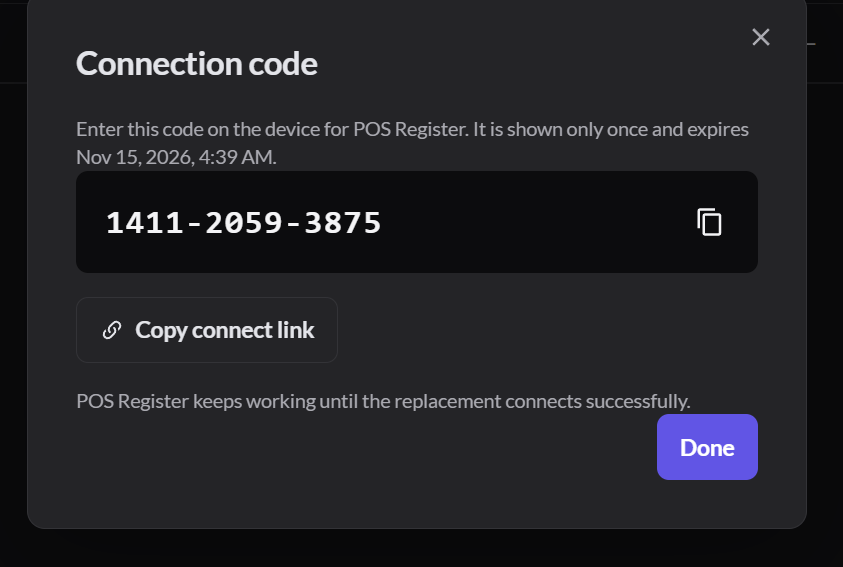
An Admin makes the code on a computer that's already connected. It looks like this on their screen:
Over the network
- Click Connect to a store, then Connect on the same network.
- Type the 6-digit setup code an Admin gives you, and a name for this computer.
- Click Ask to join this store.
- The screen says Waiting for approval. Tell the Admin the 4-digit pairing number shown on the screen.
- Wait for the Admin to approve it. The computer then connects by itself.
The Admin approves it on this tab:
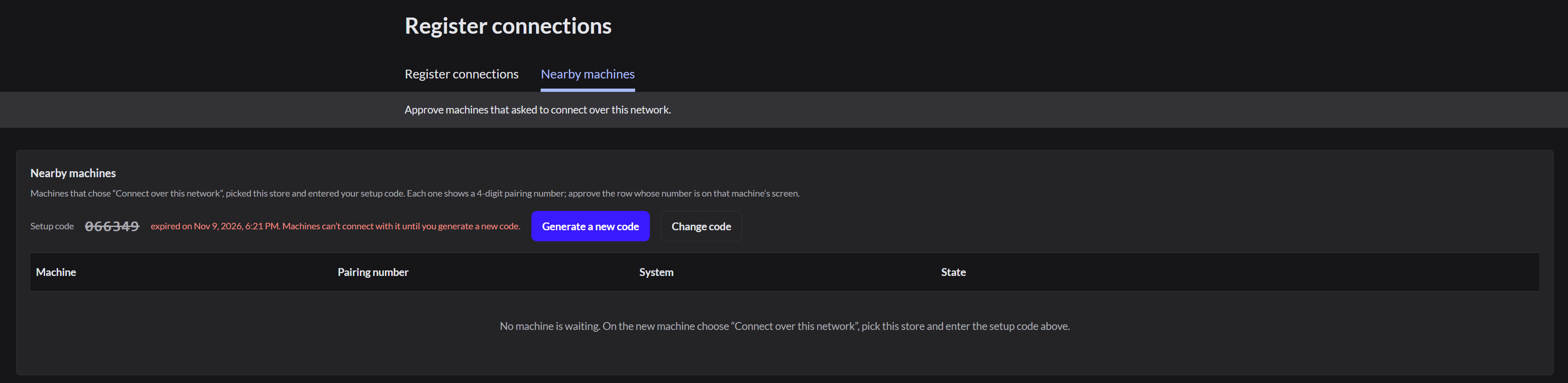
An Admin can also approve a new computer over the network.Connect over the network
As an organizer
- Click I'm an Organizer on AutoLNK.
- Type your AutoLNK email or phone and your Password, then click Sign in.
- If you have more than one store, choose your store.
The back office opens on this computer. The computer isn't set up as a register yet.
To sell on this computer:
- In the menu on the left, click Sell, then Use this computer as a register.
- Pick a free register.
- Choose Use it myself or Sign out and let a staff member use it.
Each register can have only one computer. If you choose a register that another computer is using, the new computer replaces it. Only do that when the old computer is gone or broken.